 Global Services
 The Department Manager is a sub-role assigned by the Company Manager within EtechRU, designed to provide focused administrative access at the department level without full company-wide permissions.
To access administrative tools and configuration options, scroll down the dashboard.
As a Department Manager, you can manage users within your assigned department, oversee course Enrollments, create learning paths, and monitor license allocations, all within your department’s scope. The dashboard is organised into three key tabs: Users, Courses, and Licenses.
Users Tab
The Users tab is your central workspace for managing all learners within your assigned department. It provides six actions:
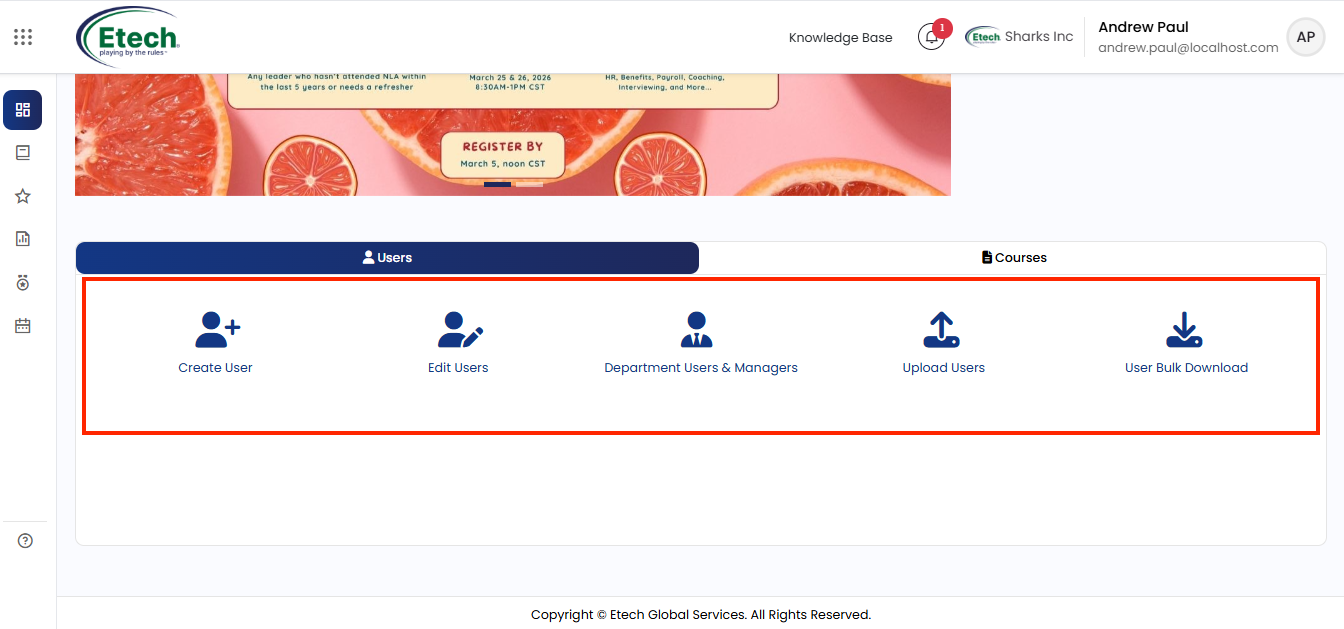
Create User : Add new learners to your department by entering their required details including name, email address, role assignment, and department.
Edit Users : View and update existing user profiles within your department. From here you can also change a user’s course enrollments, manage their course licenses, and access their individual learning report.
Department Users & Managers : Assign or adjust user roles within your department. Use this to promote users, move them between role levels, or remove them from a role using the Add, Move, and Remove controls.
Upload Users : Bulk add users to your department by uploading a CSV file. Configure the file separator, encoding settings, and upload type before submitting.
User Bulk Download : Export your department’s full user list in text, ODS, or Excel format for offline reference or reporting.
Approve Training Events : Review and approve pending training event requests submitted by learners within your department.
Courses Tab
The Courses tab provides the tools to manage how your department accesses and progresses through learning content. It contains two options:
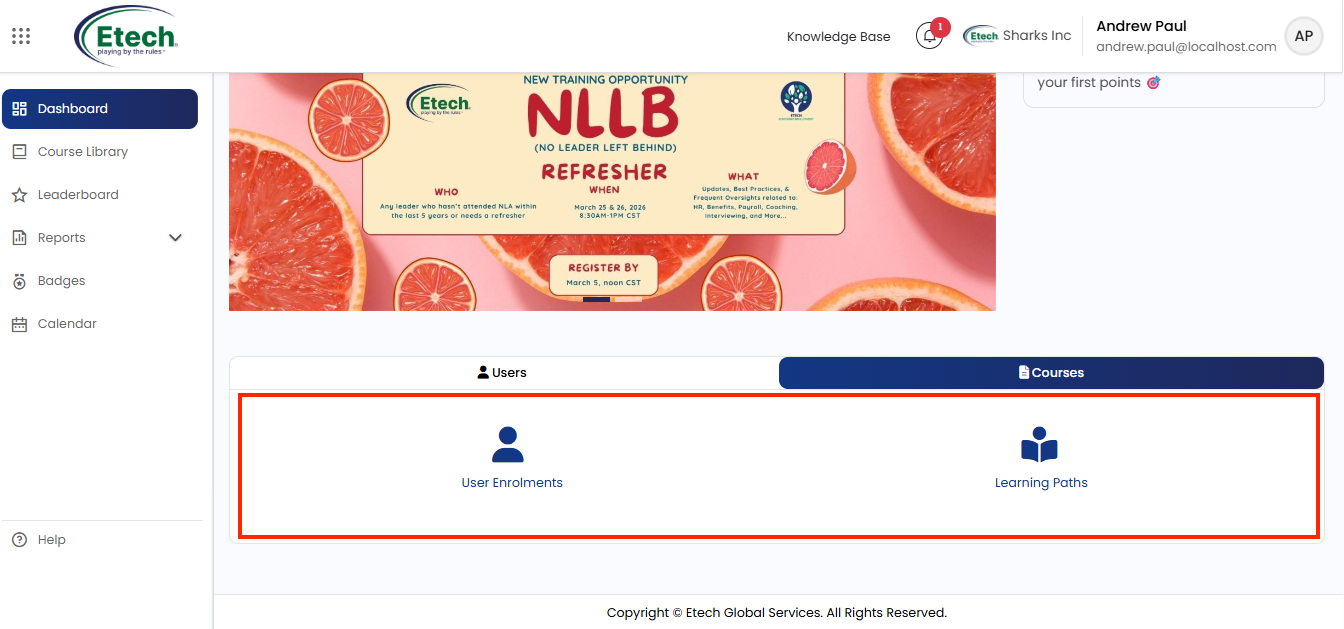
User Enrollments : Enroll individual users or your entire department into specific courses. Search for a course by keyword, manage currently enrolled and available users from a dual-panel interface, and set a notification email date to inform learners of their new enrollment.
Learning Paths : Create and manage structured course sequences that guide your learners through a defined development journey. Each Learning Path includes a name, description, active status, and optional cover image to build a tailored training programme for your team.

Video