 Global Services
 The Companies tab is where you configure and maintain your company’s setup.
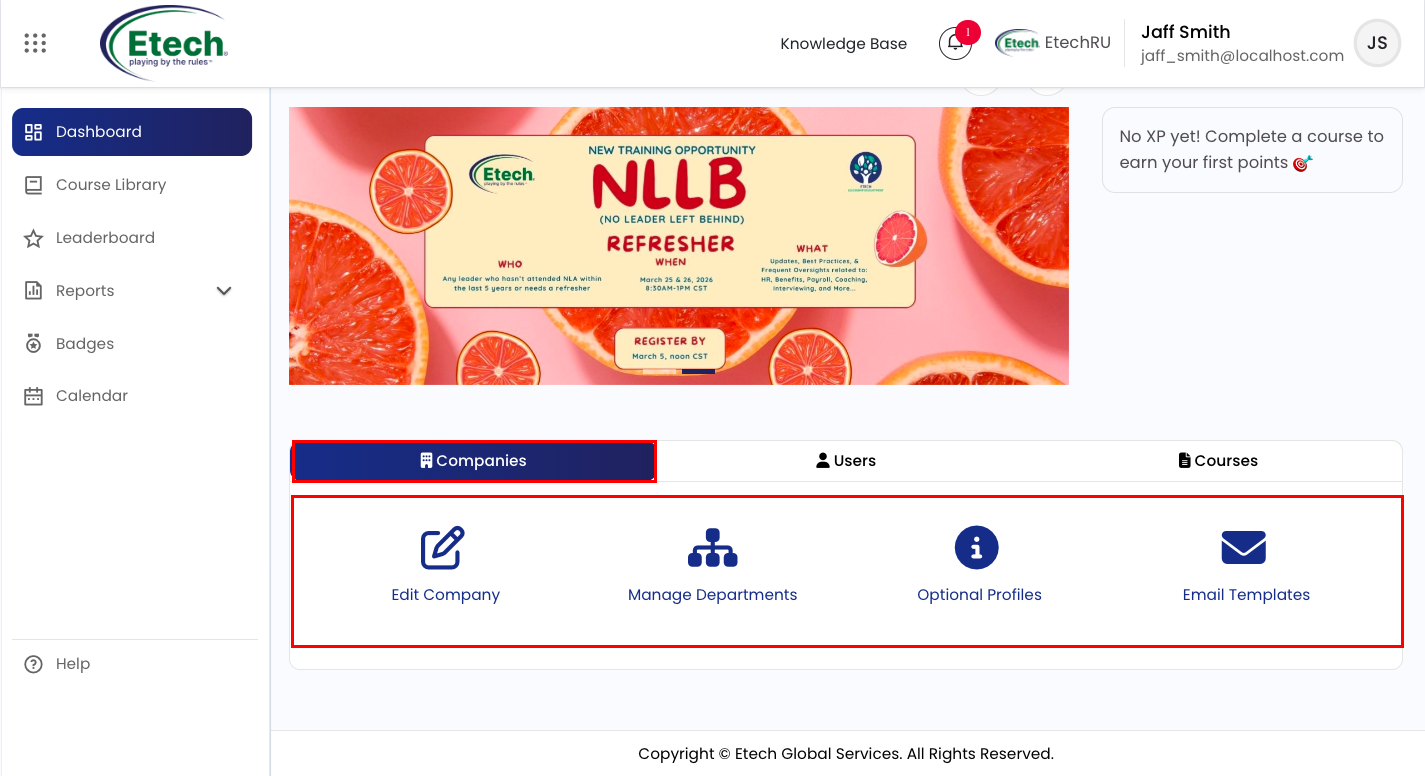
Edit Company
Use this to update your company’s core settings:
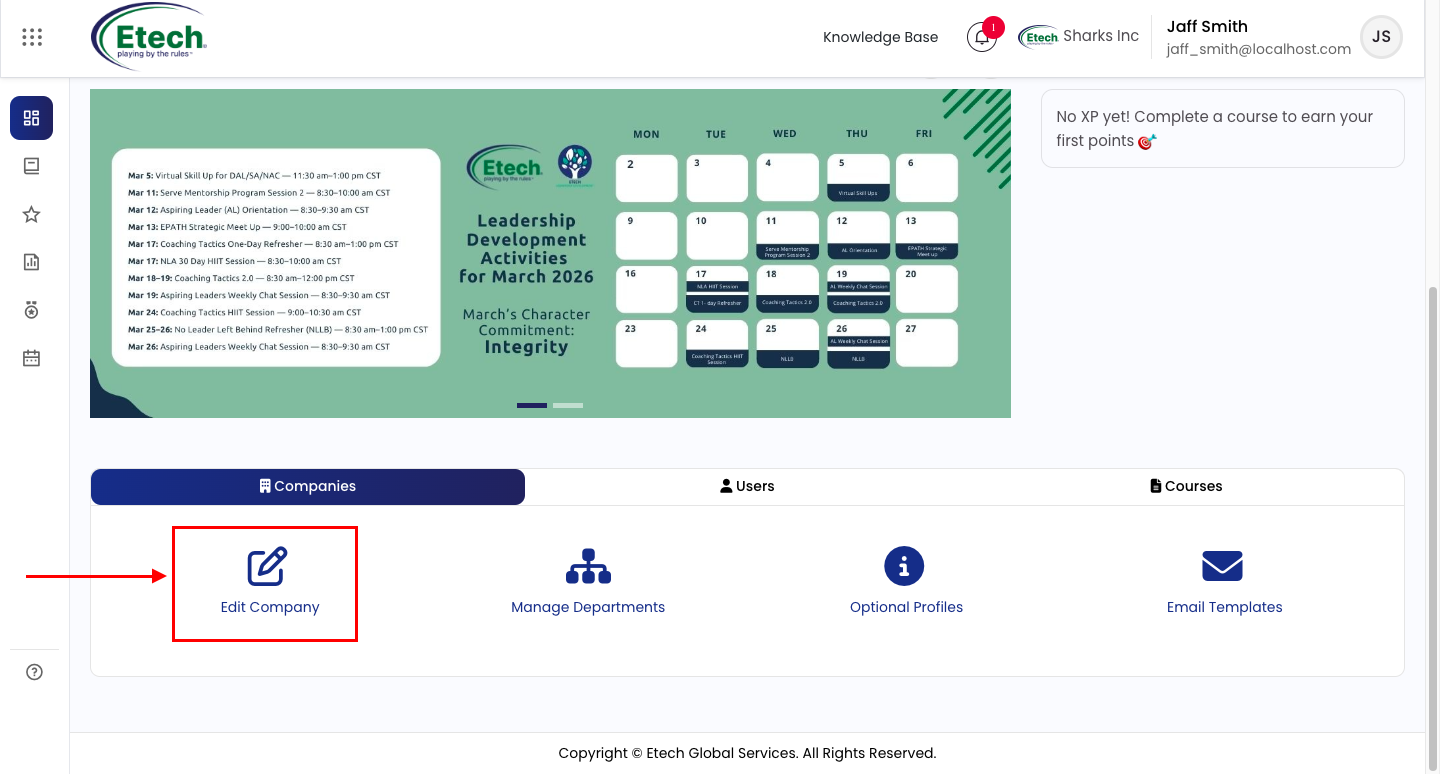
- User can edit the mandatory basic information, including Full Name, Short Name, and Address.
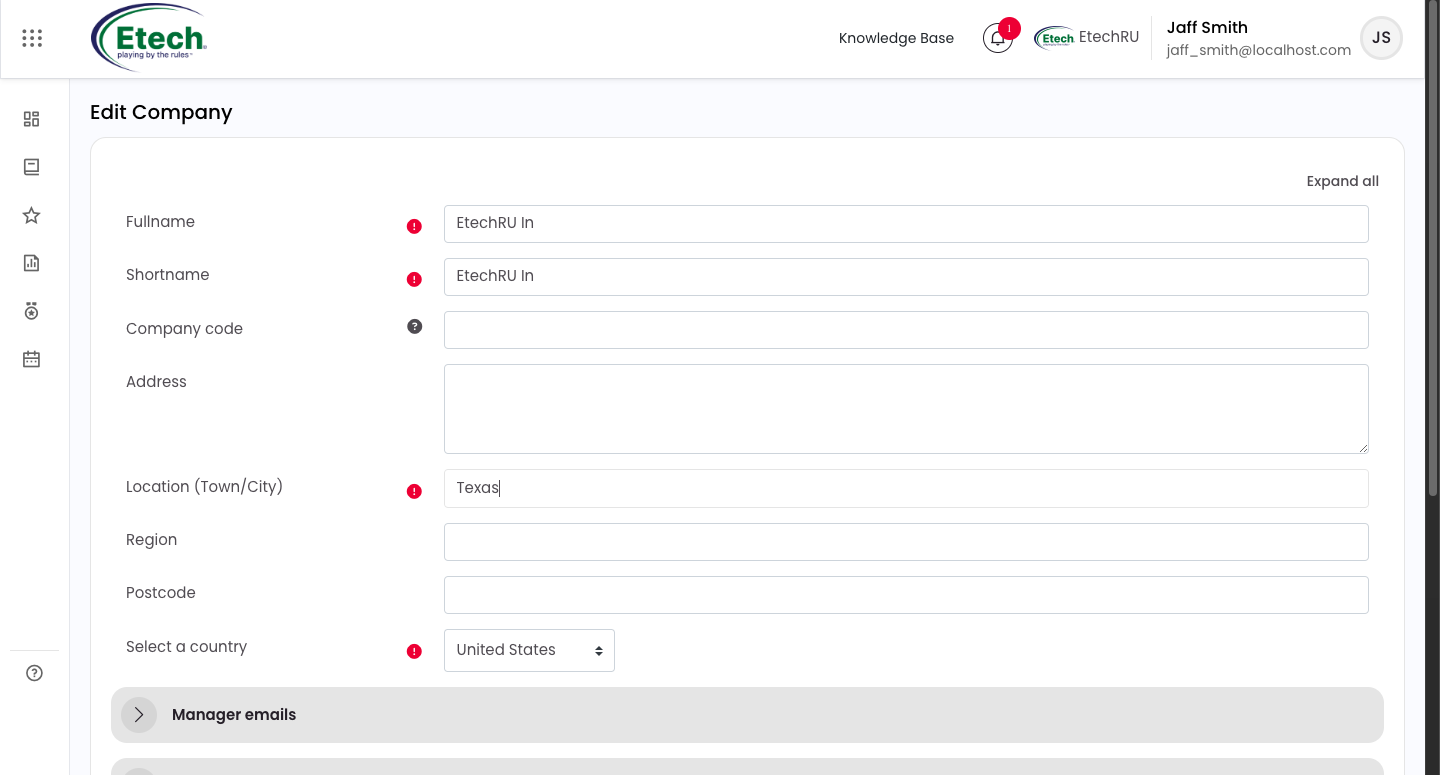
- Manager Emails : This section controls how and when automated emails are sent to managers, including the frequency of manager emails, digest schedule, which email template set to apply, and which profile field to use for routing notifications to an external supervisor.
- Advanced Settings : This section allows you to restrict user registration to specific company email domains, apply a role template to new users, add up to three custom reference fields for internal tracking, and map a profile field to auto-assign users to departments.
- User Defaults : This section sets the default preferences applied to all newly created users in your company, including email visibility, email format, forum subscription and tracking behavior, text editor type, timezone, and preferred language.
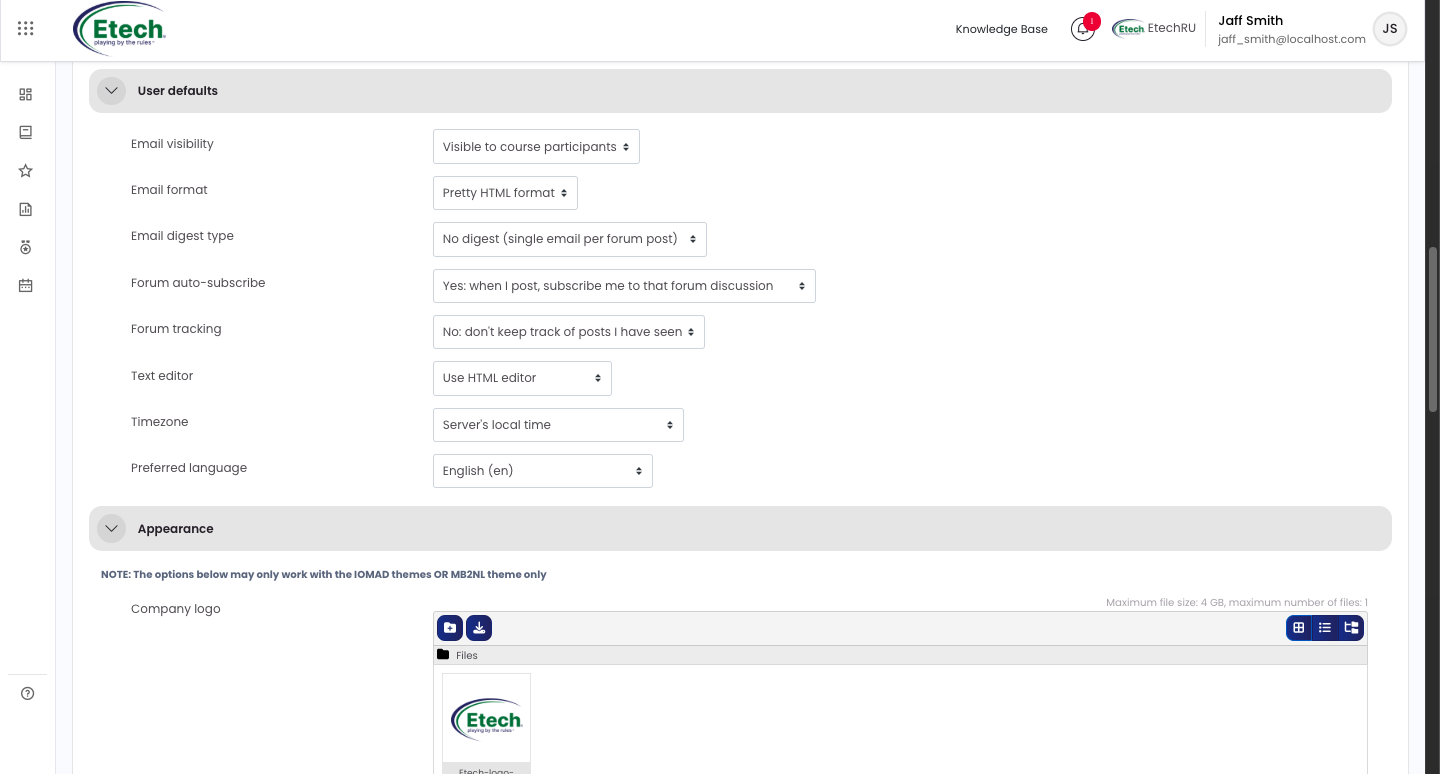
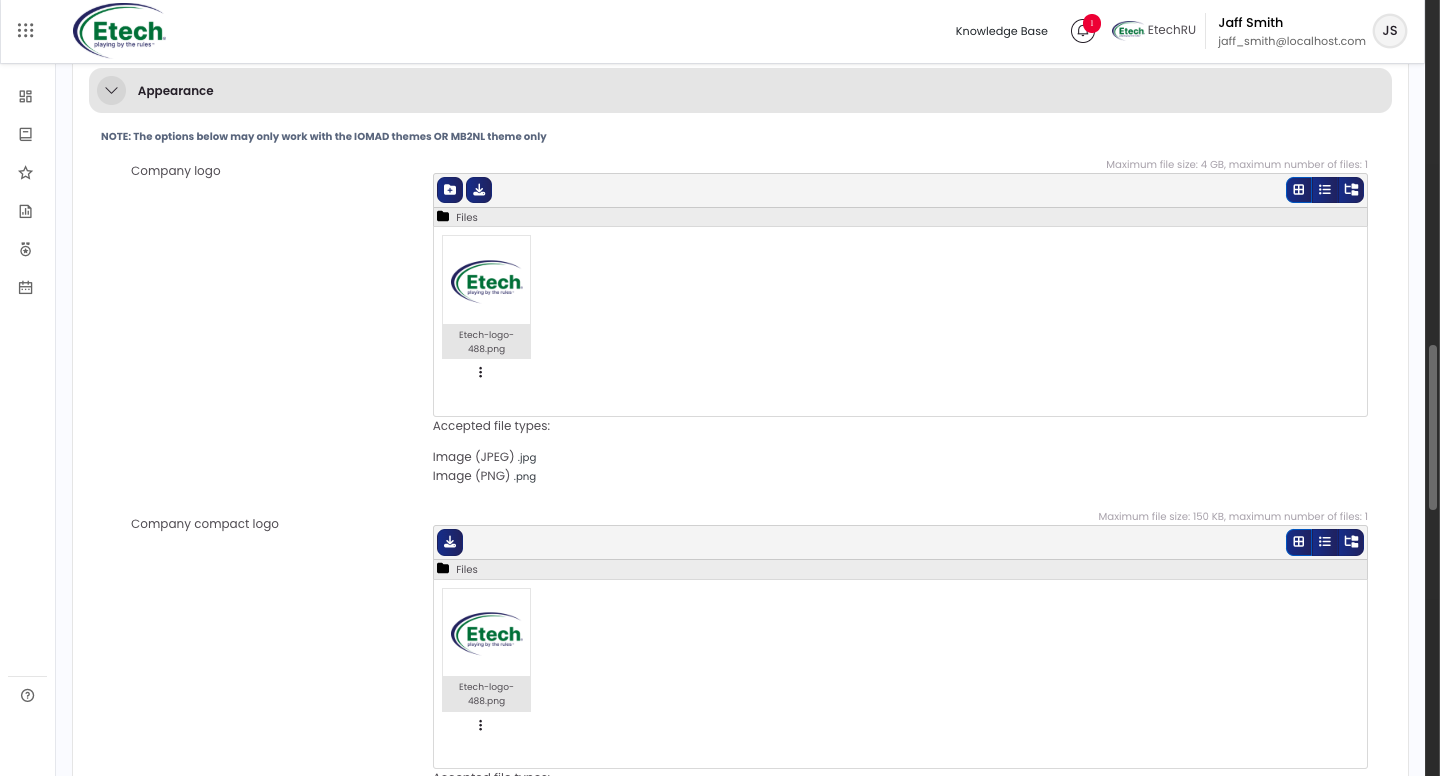
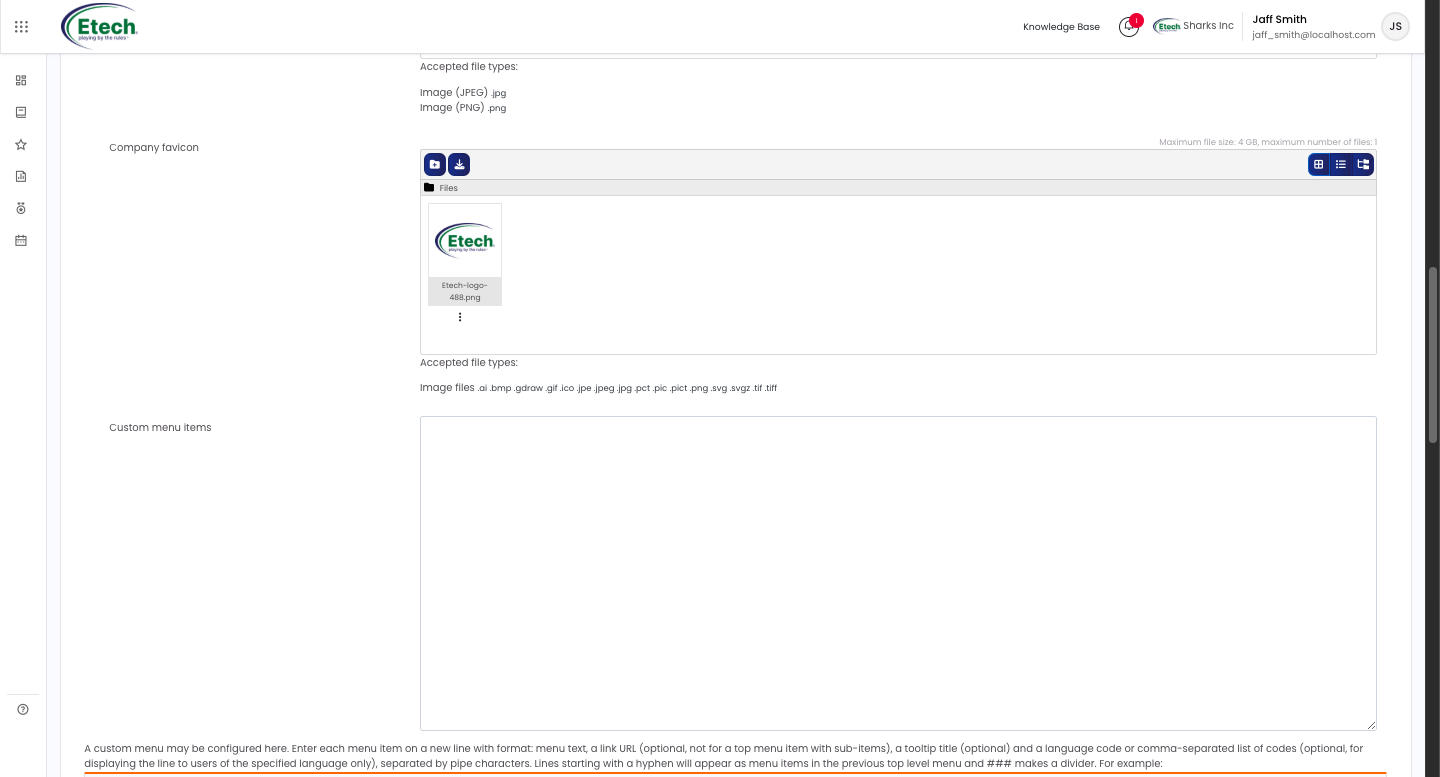
- Appearance : This section lets you upload your company’s branding assets, full-size logo, compact header logo, and favicon, and add custom navigation menu items (JPEG/PNG only; compact logo max 150 KB). Note: these settings only apply when using the IOMAD or MB2NL theme.
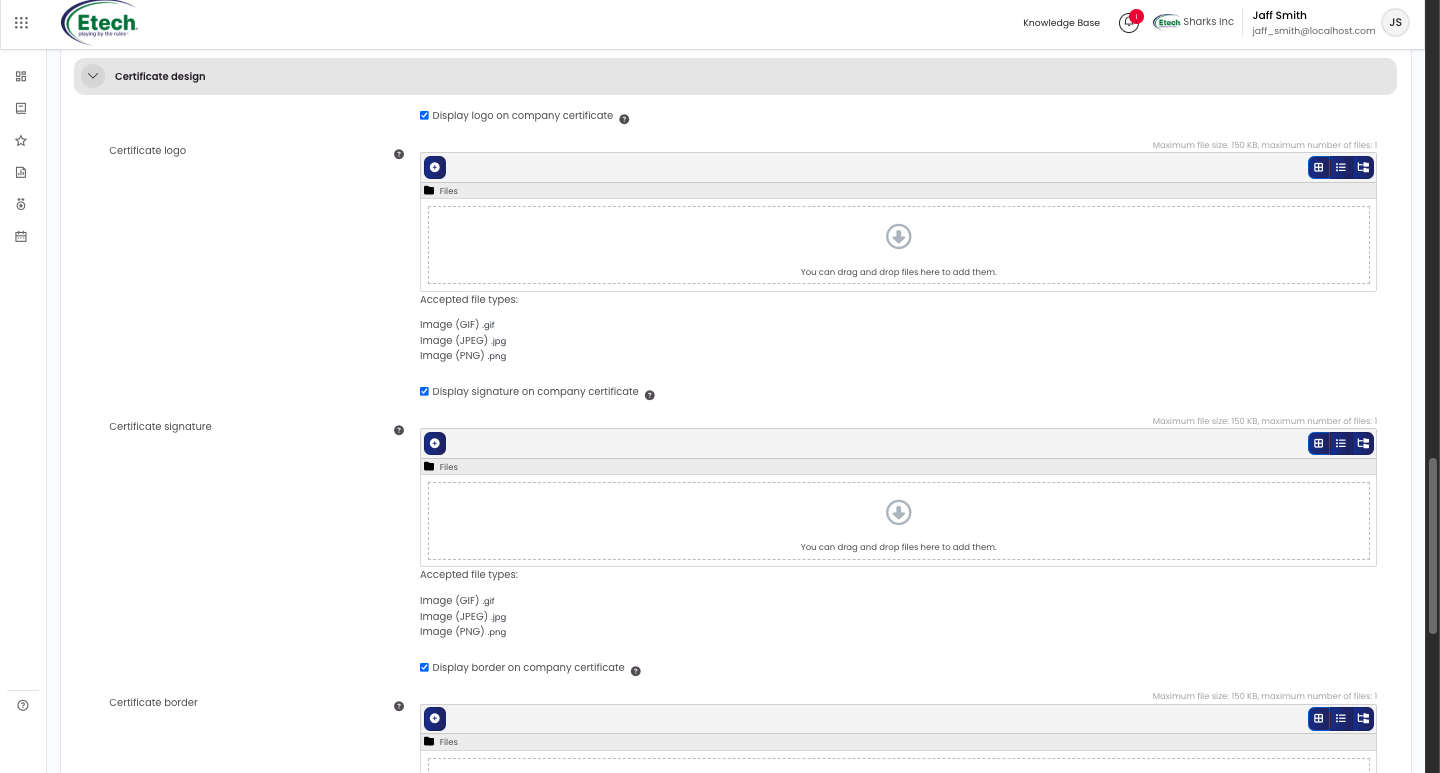
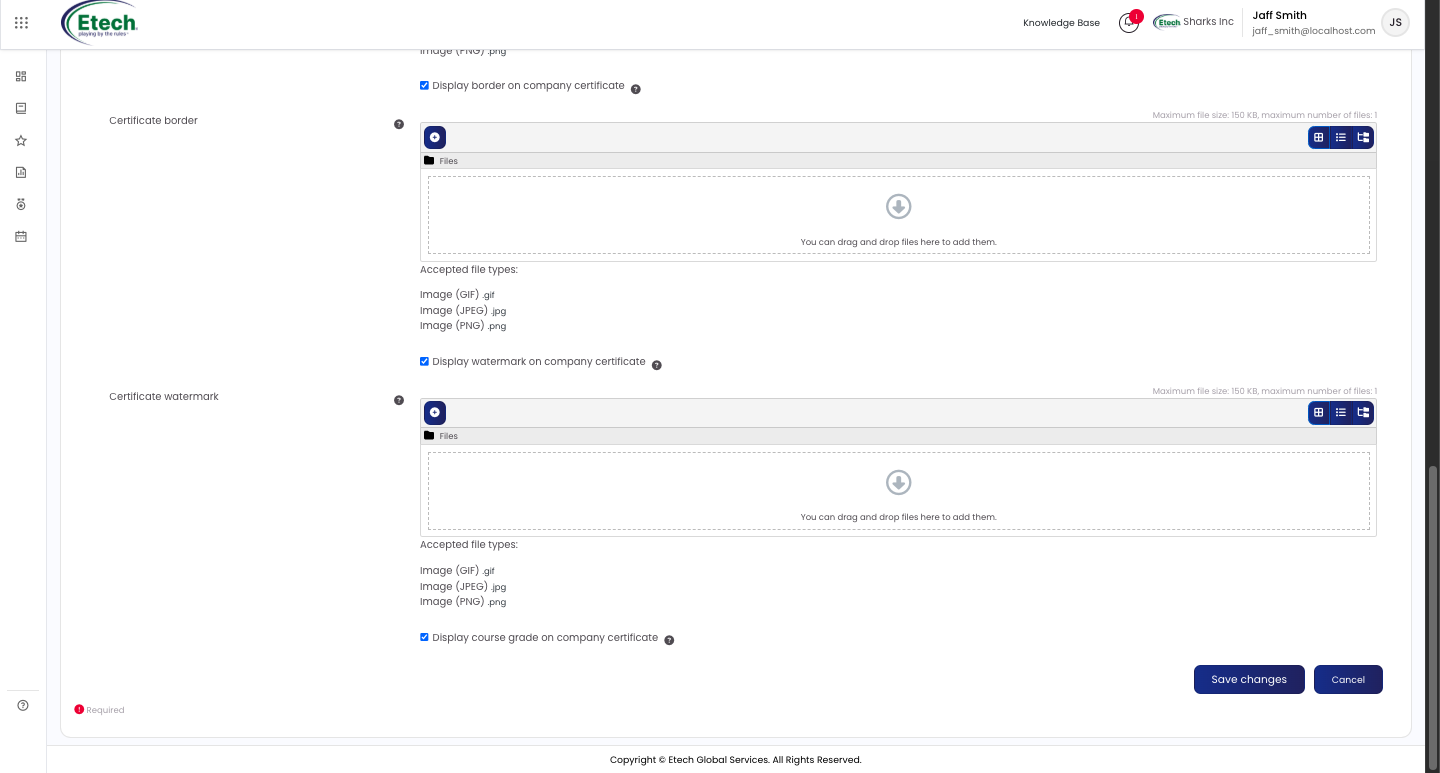
- Certificate Design : This section allows you to upload and configure the visual elements that appear on course completion certificates issued under your company, including the logo, signature, border, and watermark. Each element can be individually toggled on or off using its checkbox, and you can also choose whether to display the course grade on the certificate.
Manage Departments
Use this to build and maintain your organisational hierarchy.
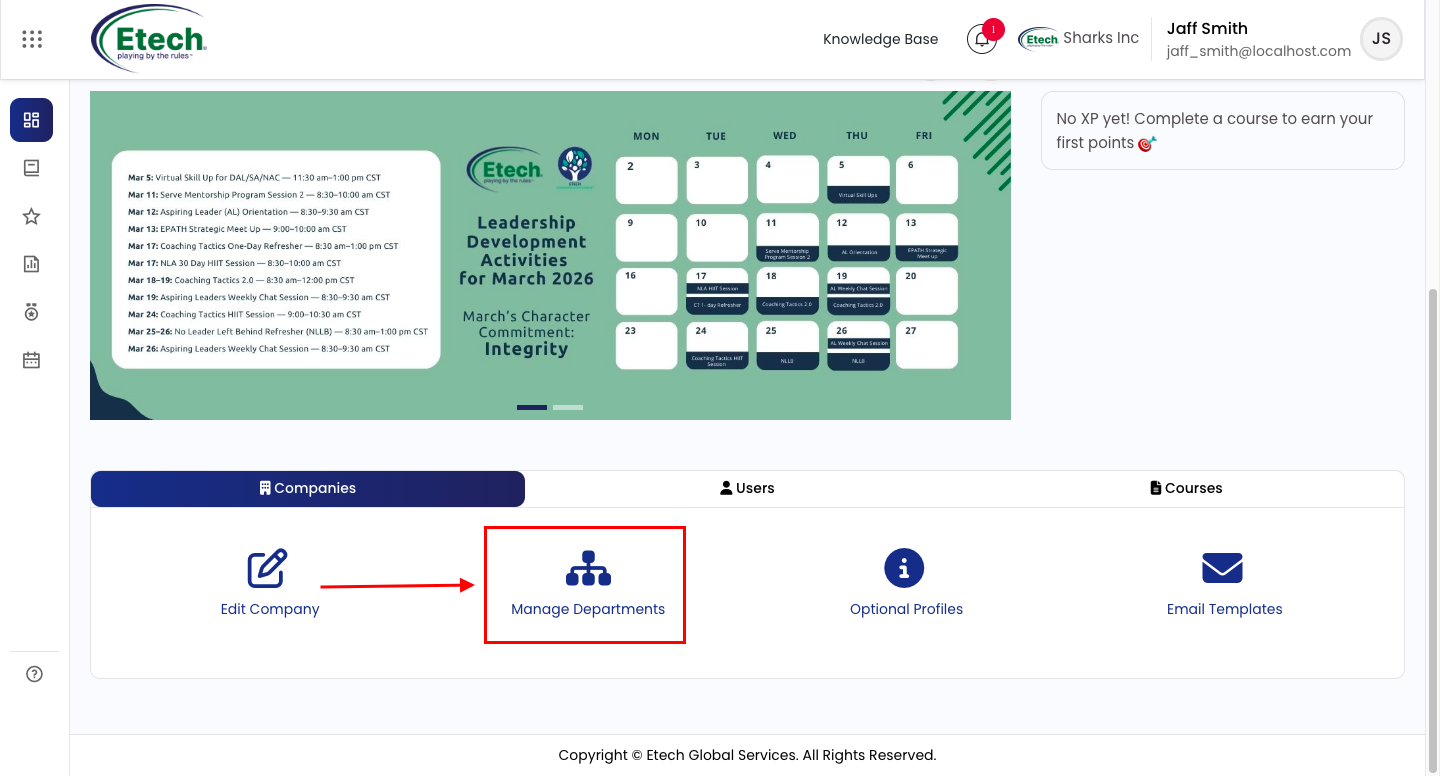
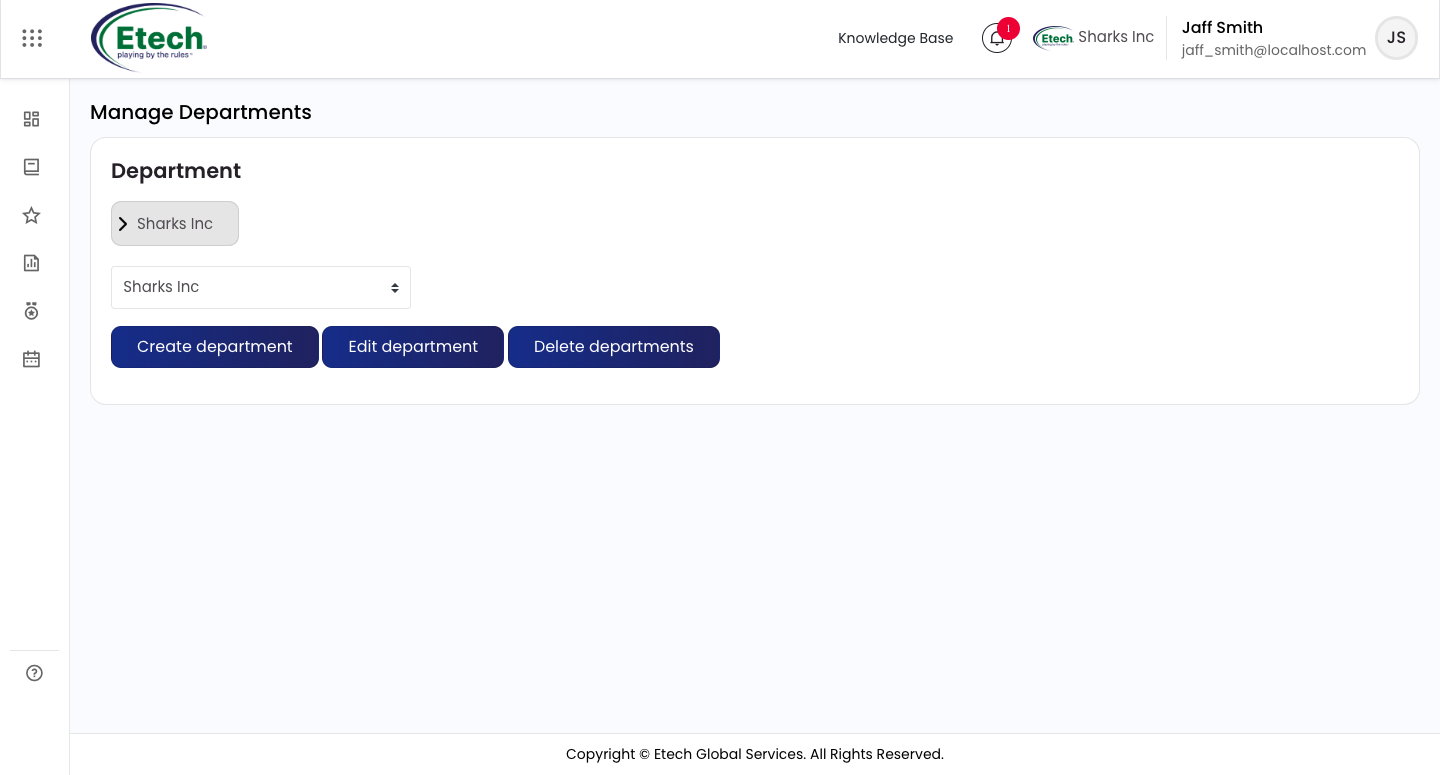
- Create department : Select a parent department, enter a full name and a unique short name, then save
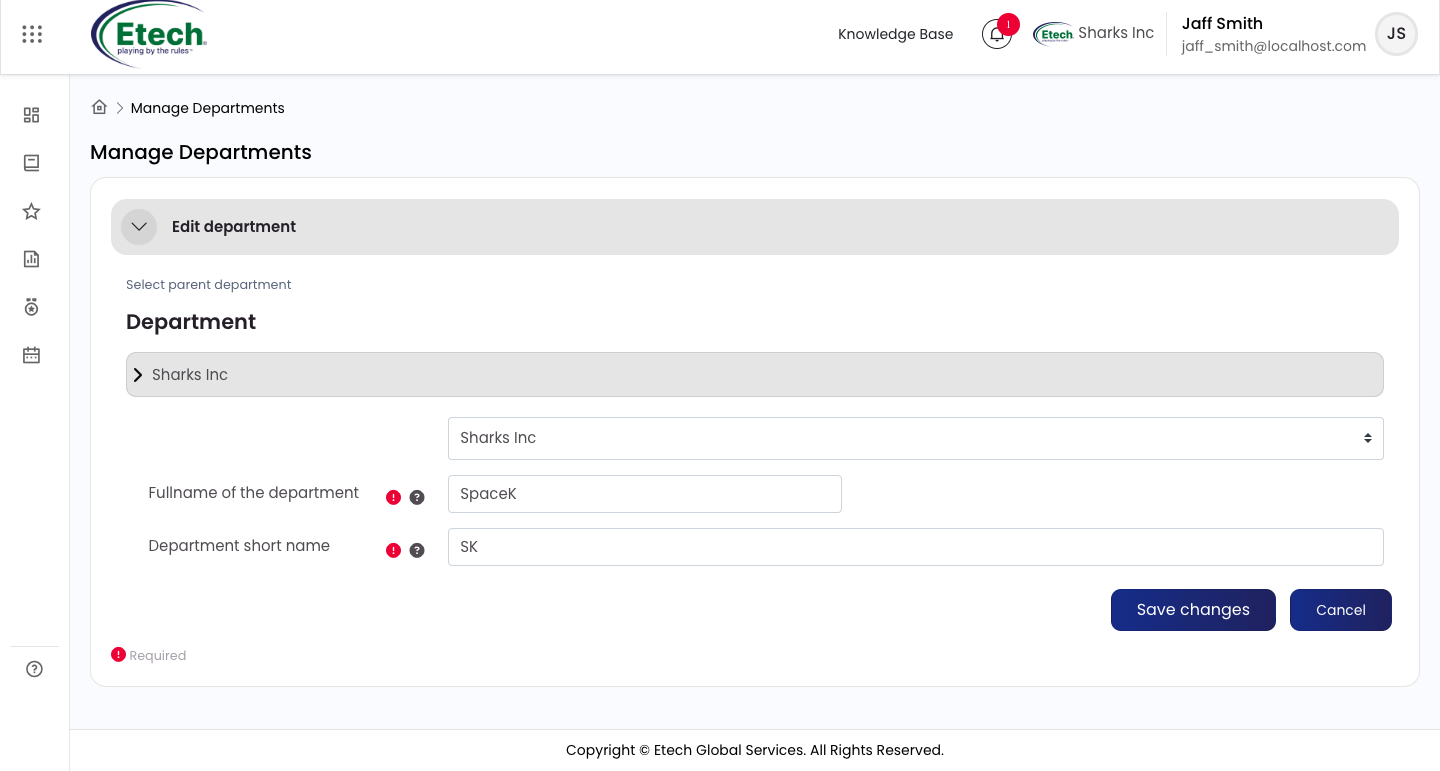
- Edit department : Update a department’s name or short name
- Delete department : Only possible if no users are assigned; the root/top-level department cannot be deleted
Always build your department structure before assigning users.
Optional Profiles
Use this to create custom fields that appear on user profiles beyond the default system fields, useful for capturing company-specific information such as Call Center, Campaign, Supervisor Name, or Hire Date.
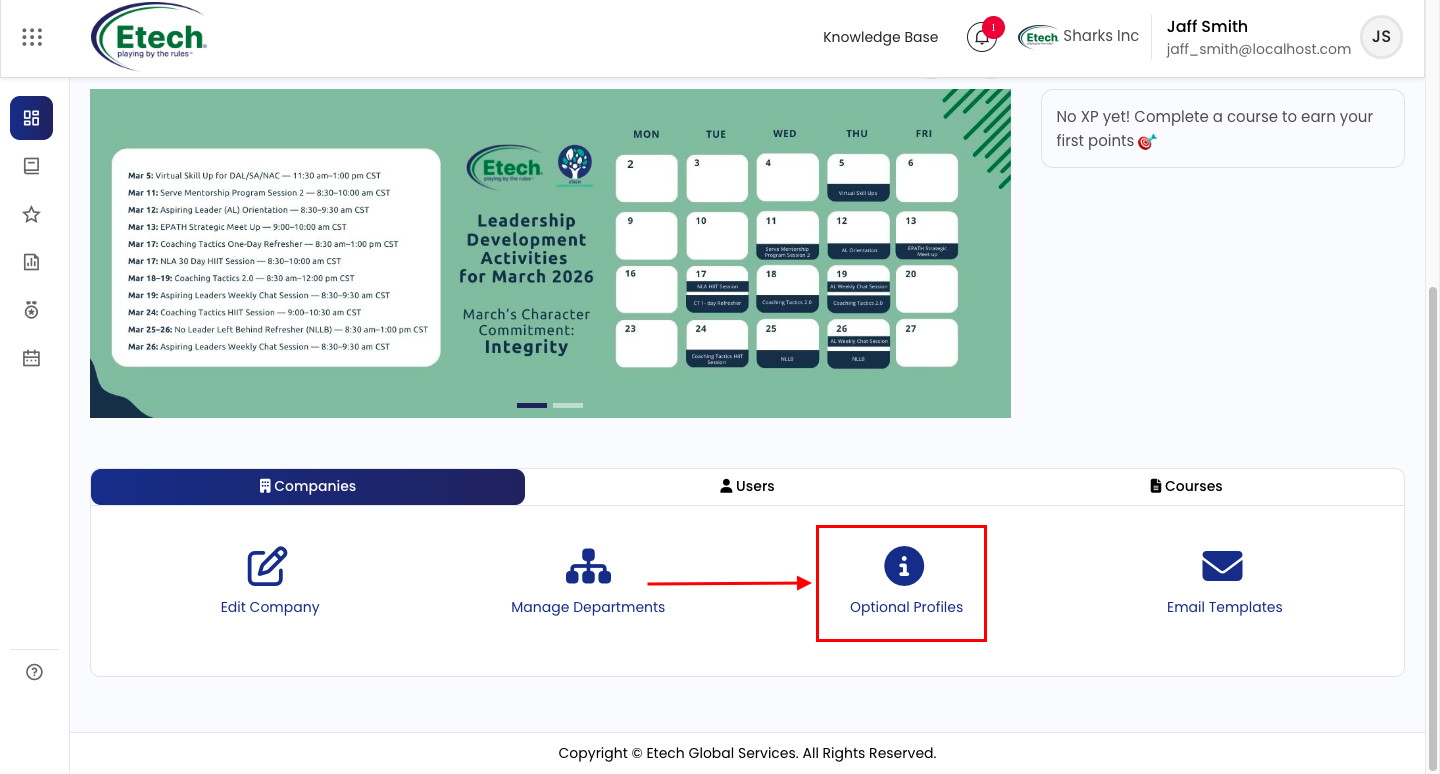
To create a new field, click the Create a new profile field button and select a field type:
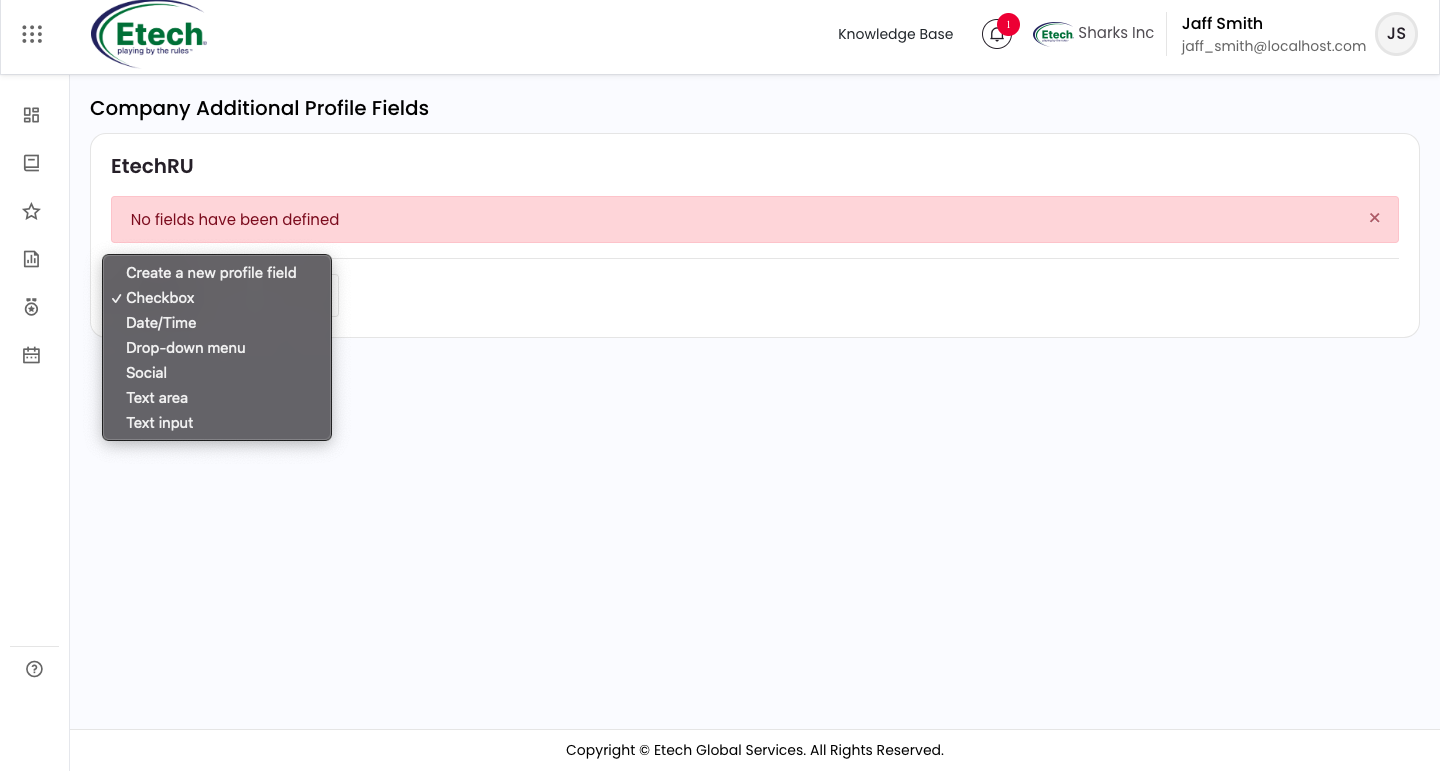
- Checkbox : a yes/no toggle for binary flags
- Date/Time : a date picker for fields like Hire Date or Birthdate
- Drop-down menu : a pre-defined list users select from; add options one per line and set a default value if needed
- Social : links to social profiles such as Skype ID or Yahoo ID
- Text area : a multi-line box for longer free-text entries
- Text input : a single-line box for short values like names or IDs
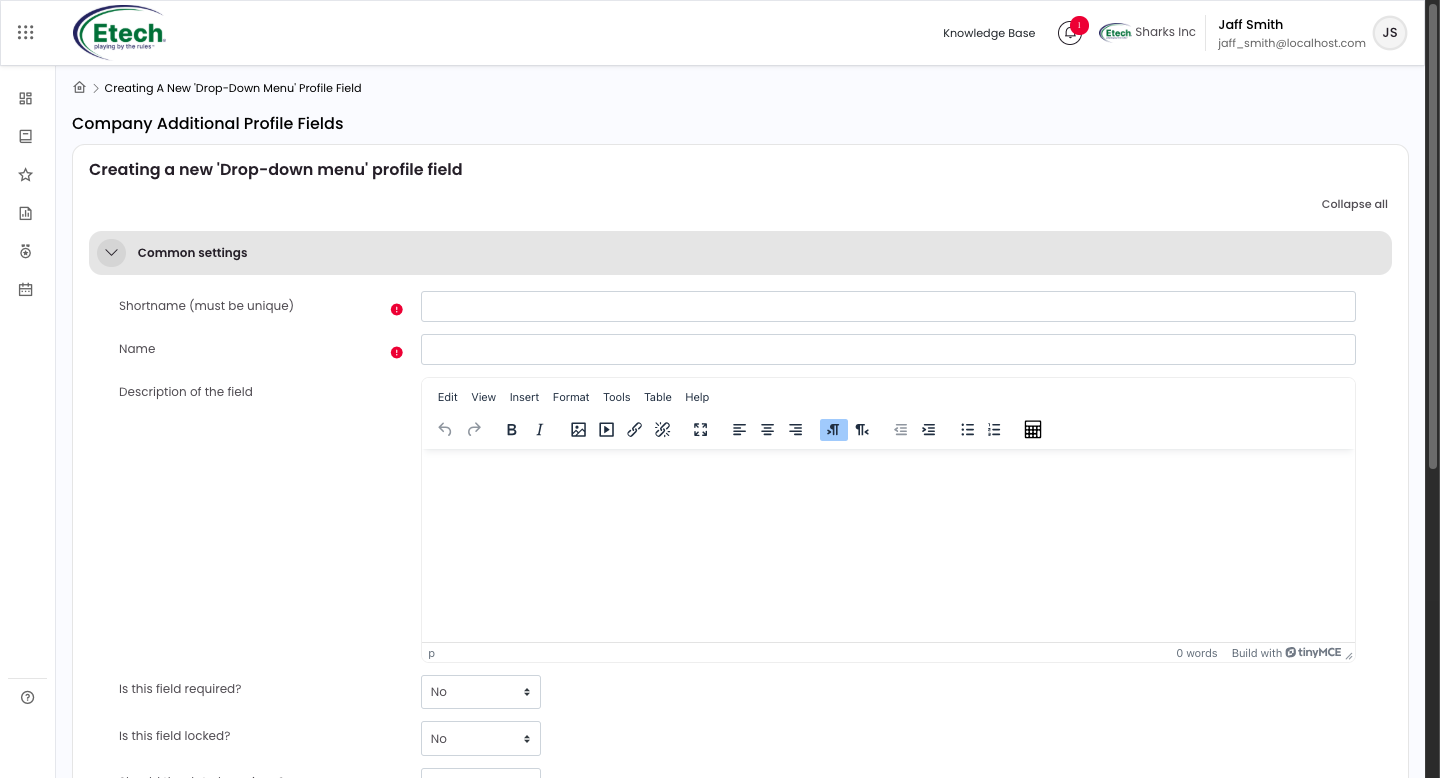
When configuring any field, set the following under Common Settings:
- Short name : must be unique; used internally by the system
- Name : the label users see on their profile
- Description : optional helper text explaining the field
- Is this field required? : if Yes, users cannot save their profile without completing it
- Is this field locked? : if Yes, only admins can edit the value; users cannot change it themselves
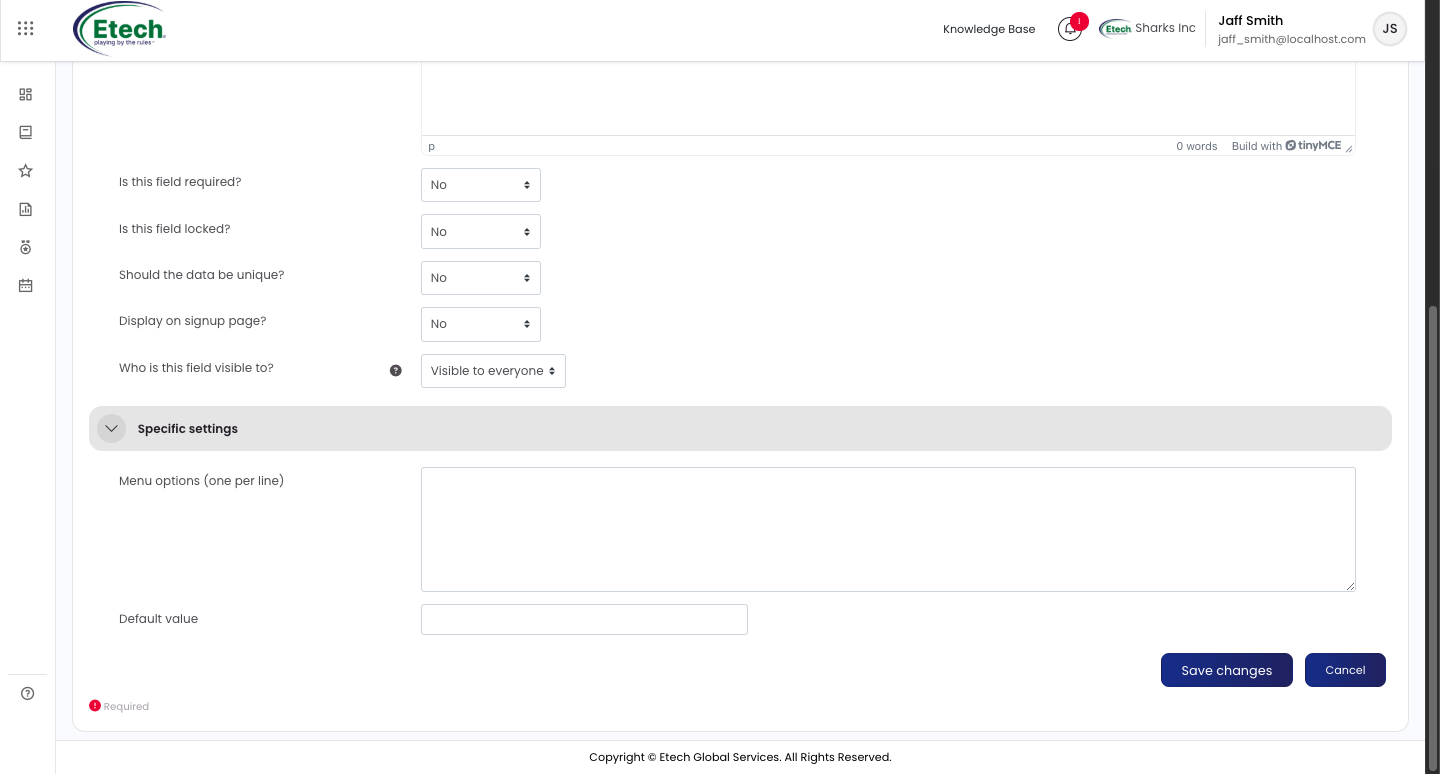
- Should the data be unique? : if Yes, no two users can share the same value in this field
- Display on signup page? : if Yes, the field appears during self-registration
- Who is this field visible to? : choose from Visible to everyone, User only, or Admin only
- Specific Settings : For Drop-down menu fields, enter each menu option on a separate line under Menu options and optionally set a Default value that will be pre-selected when the field first appears on a user’s profile.
Email Templates
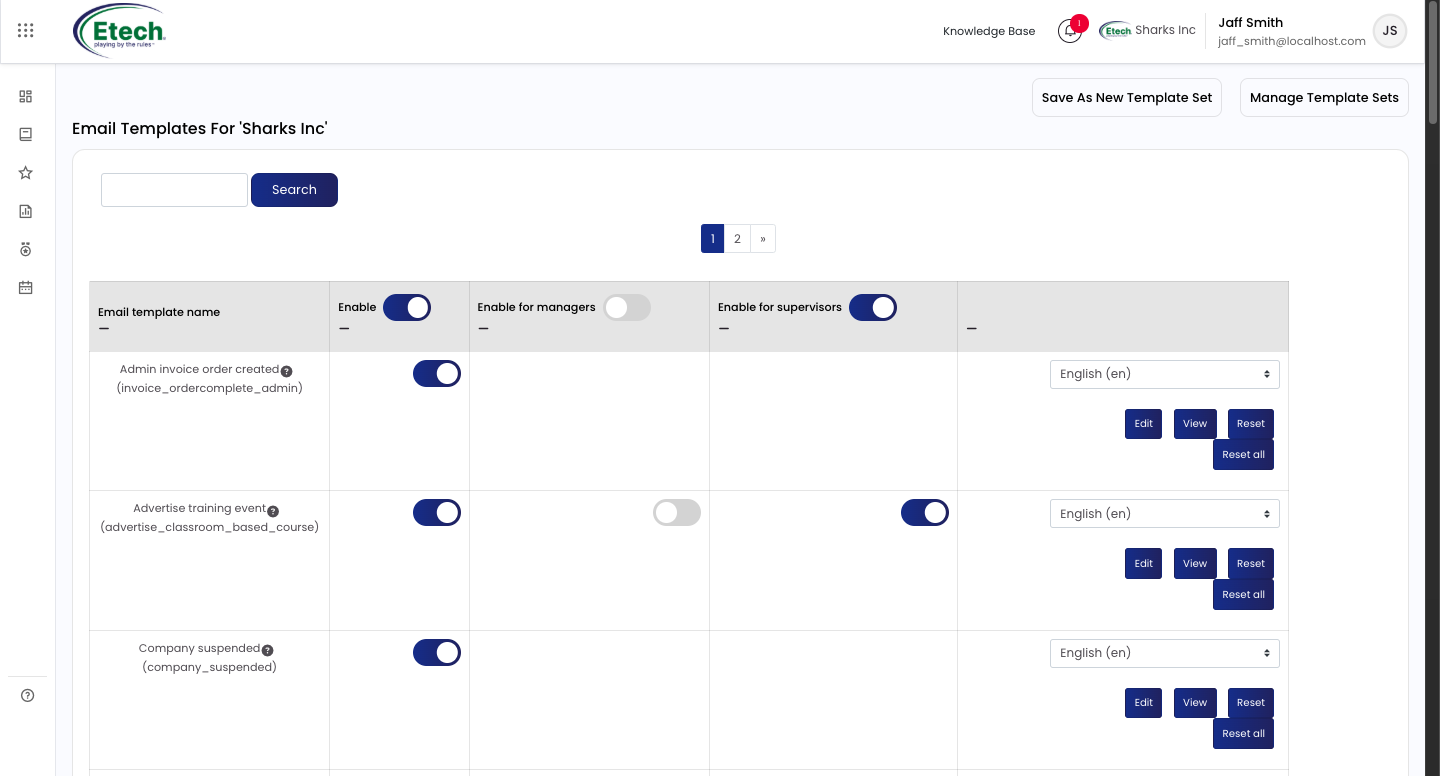
Use this to manage the format and delivery of all automated system emails sent under your company. Enable/Disable each template per audience (general users, managers, supervisors).
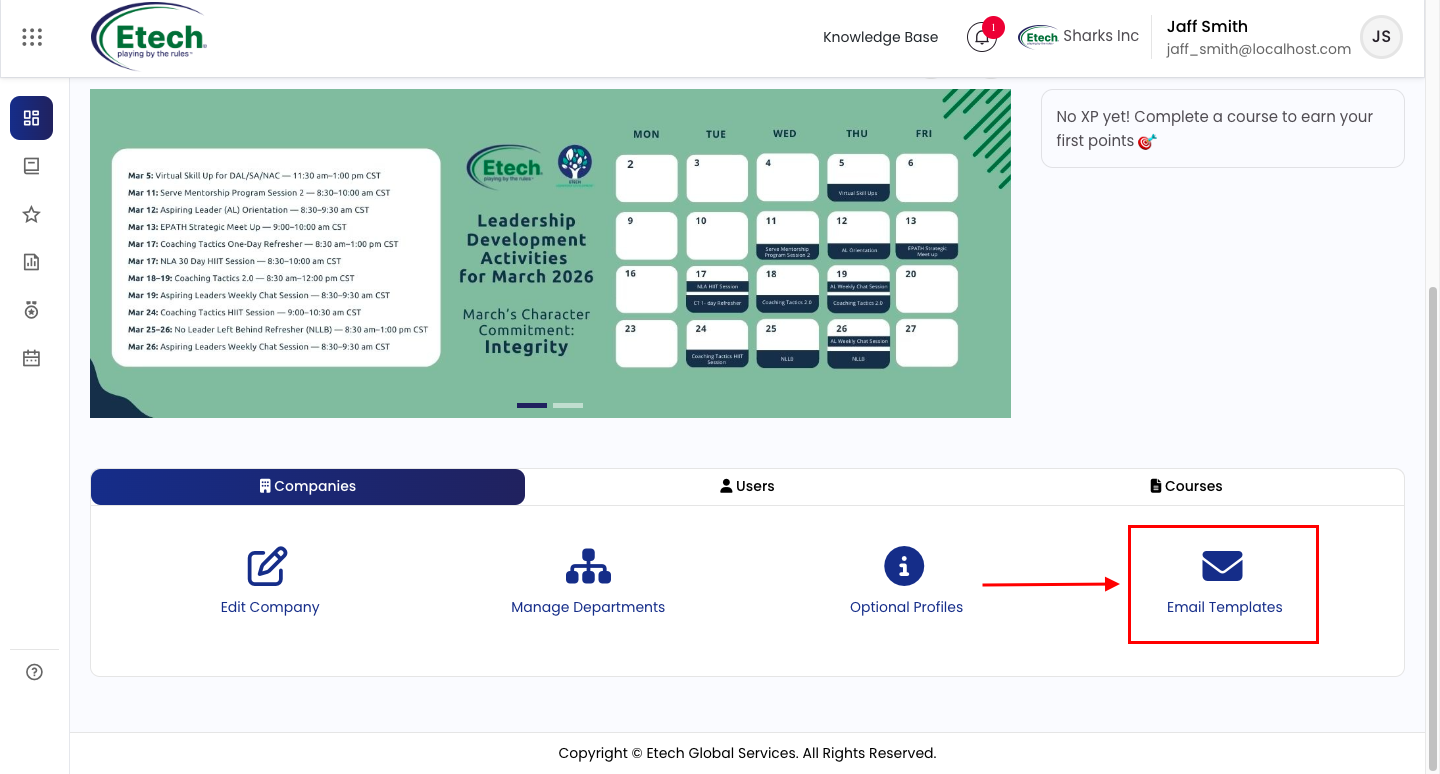
Each template can be individually enabled or disabled for general users, managers, and supervisors using the toggle switches, and can be previewed, edited, or reset to system defaults using the action buttons on the right.
- View : Preview the current template
- Edit : Modify subject and body content
- Reset / Reset All : Revert to system defaults
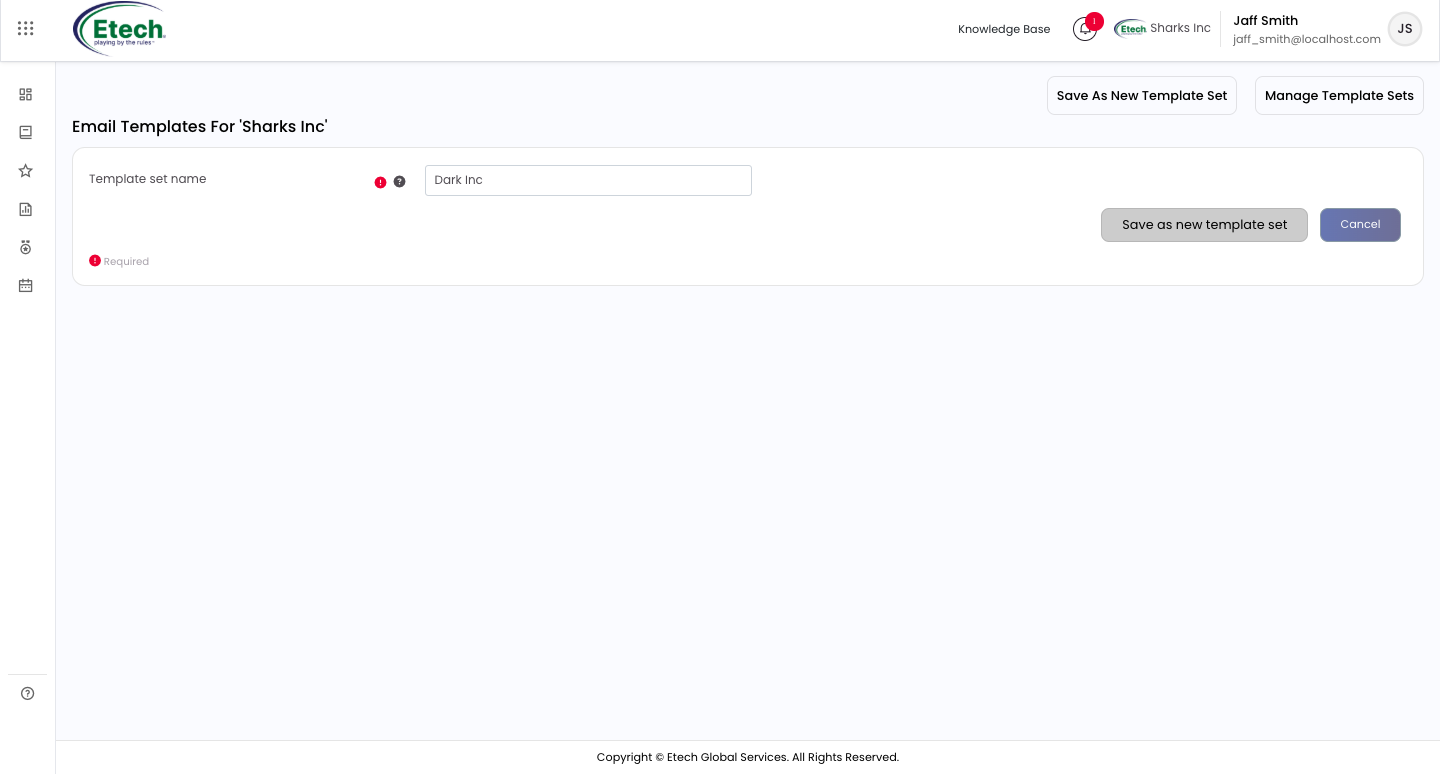
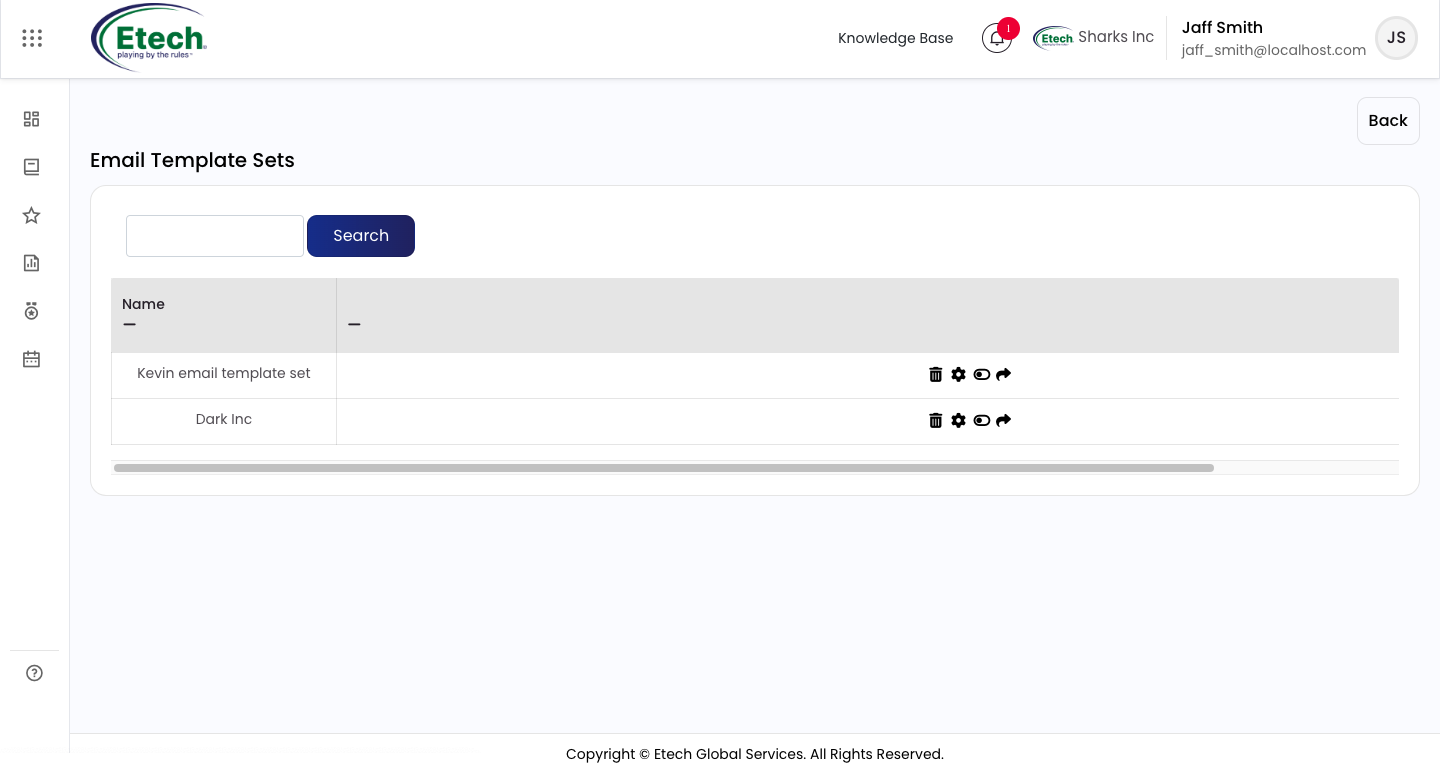
Template Sets allow you to save your current email configuration as a named set (e.g., “Dark Inc”) for reuse. Click Save As New Template Set to save, or Manage Template Sets to view, edit, reassign, or delete existing sets.

Video