 Global Services
 Click on the Completion Overview Report from the Reports tab, as highlighted for the Report Viewer role, to access this report.
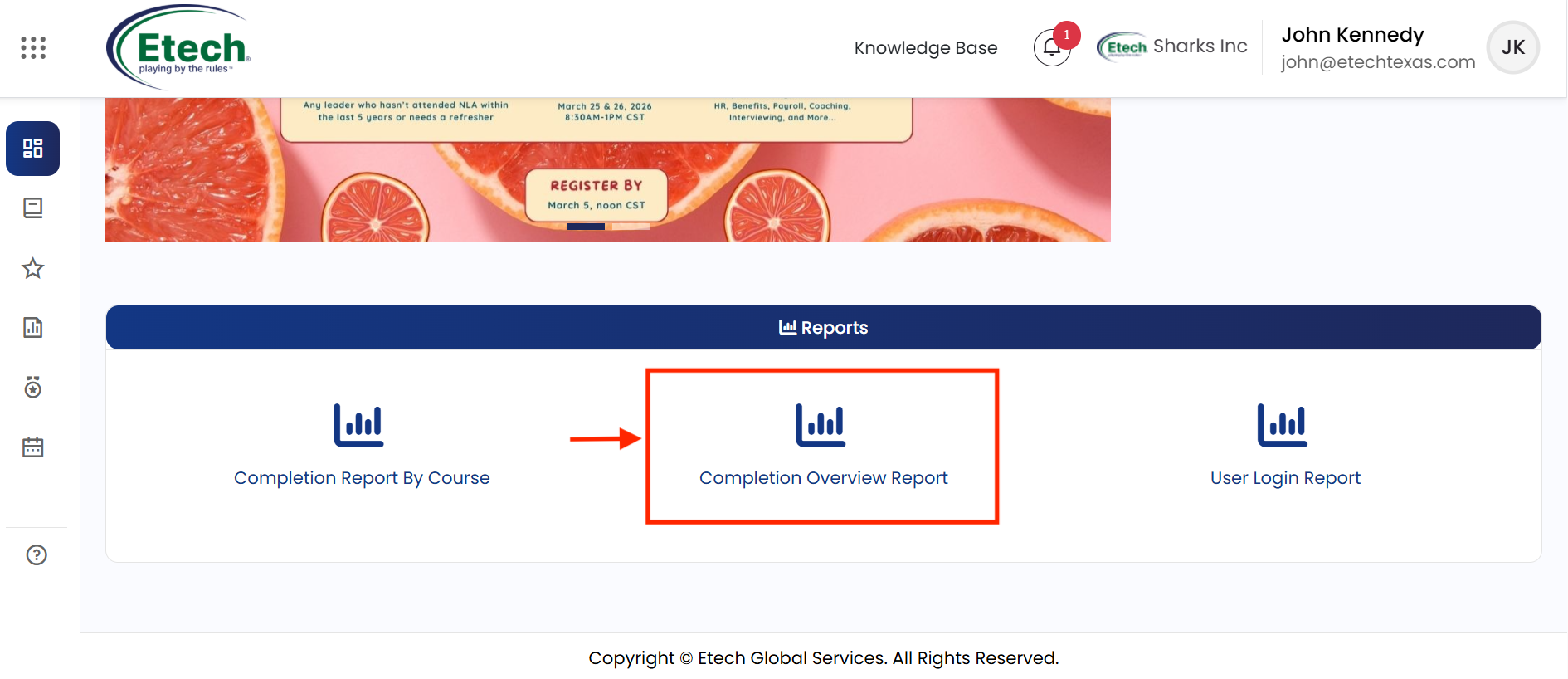
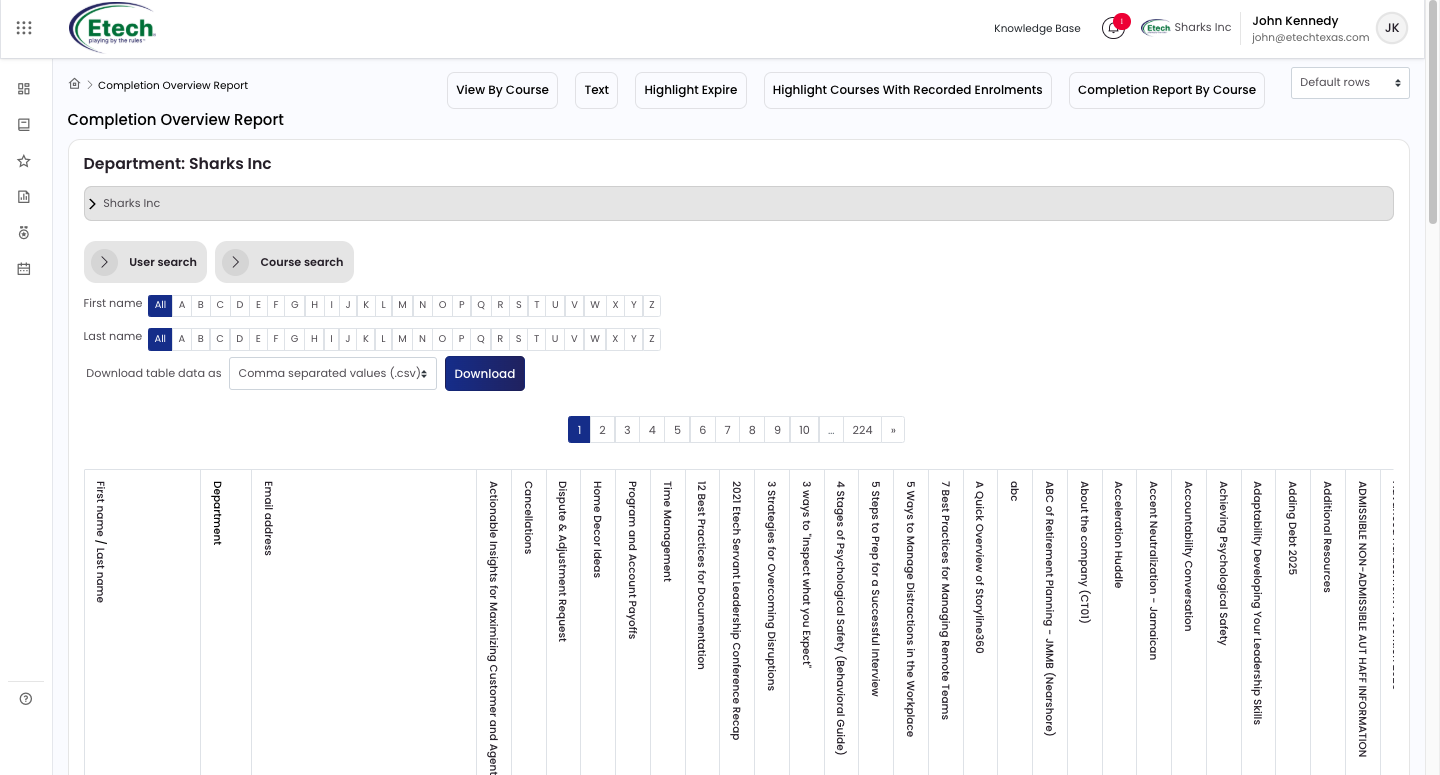
Completion Overview Report provides a full matrix of all users against all courses, using a colour-coded status system to show where each user stands.
Text View
Click the Text button to switch from the colour view to a text-only display showing completion date, expiry date, last completion date, and most recent expiry date where available.
Page Controls
- View by Course / User: switches the table axes to organise by course or by user.
- Highlight Expire / Highlight All: highlights courses that have an expiry date set.
- Highlight Courses with Recorded Enrollments: hides or shows courses with no enrollments.
- Completion Report by Course: navigates directly to that report.
- Number of Rows: choose between Default, 10, 25, 50, or All rows per page.
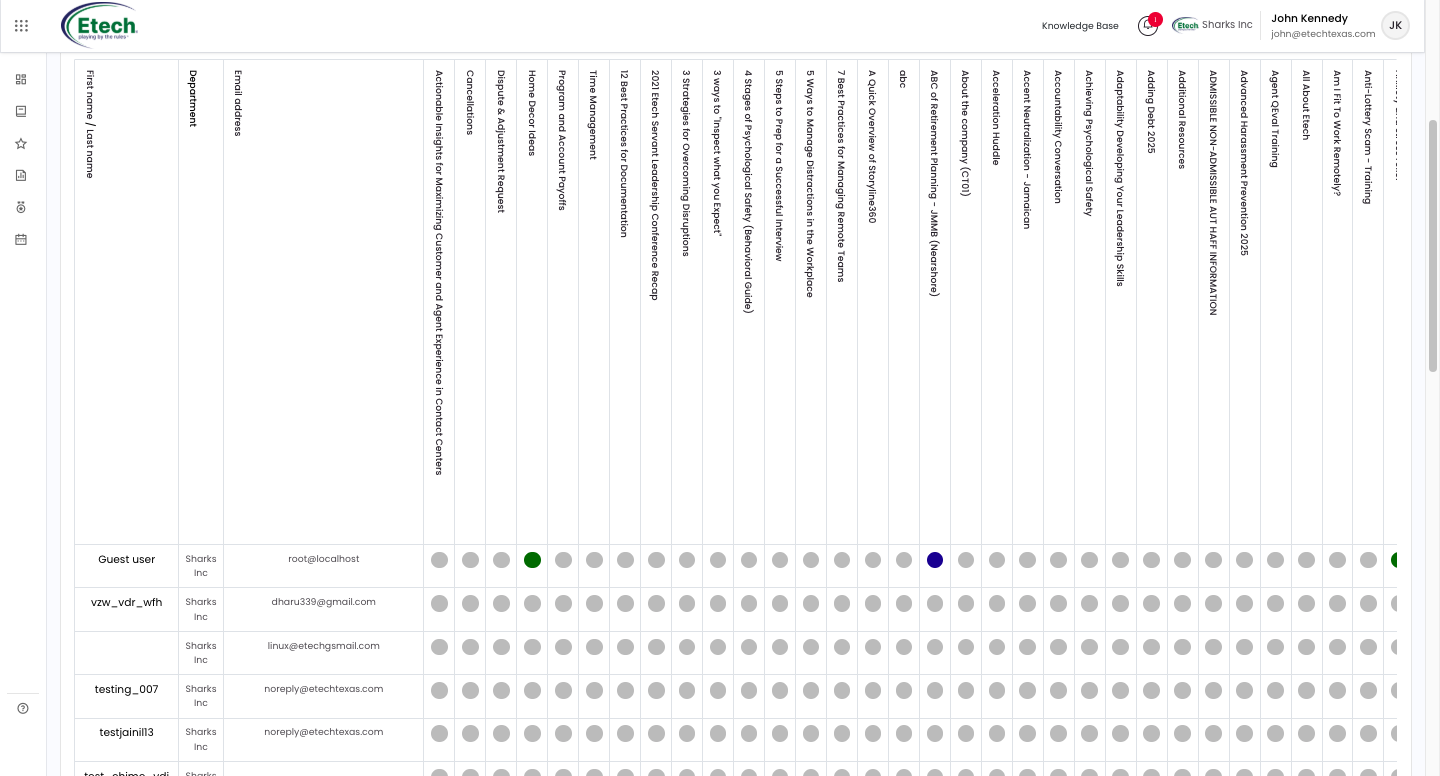
Colour Codes
| Colour | Meaning |
|---|---|
| Grey | The user has never been enrolled on this course. |
| Blue | The course is in progress, started but not yet completed. |
| Green | The user has completed the course and training is within date. |
| Amber | Completed, but training is due to expire soon. |
| Red | Previously completed, but training has now expired. |
A cell may show two colours where a user has both a past and a current status, for example, Green|Blue means training is current and a new attempt is in progress; Red|Blue means training has expired and a new attempt is underway.

Video