 Global Services
 The Notification Bell icon in the top navigation bar keeps you informed about important updates related to your account and learning activities.
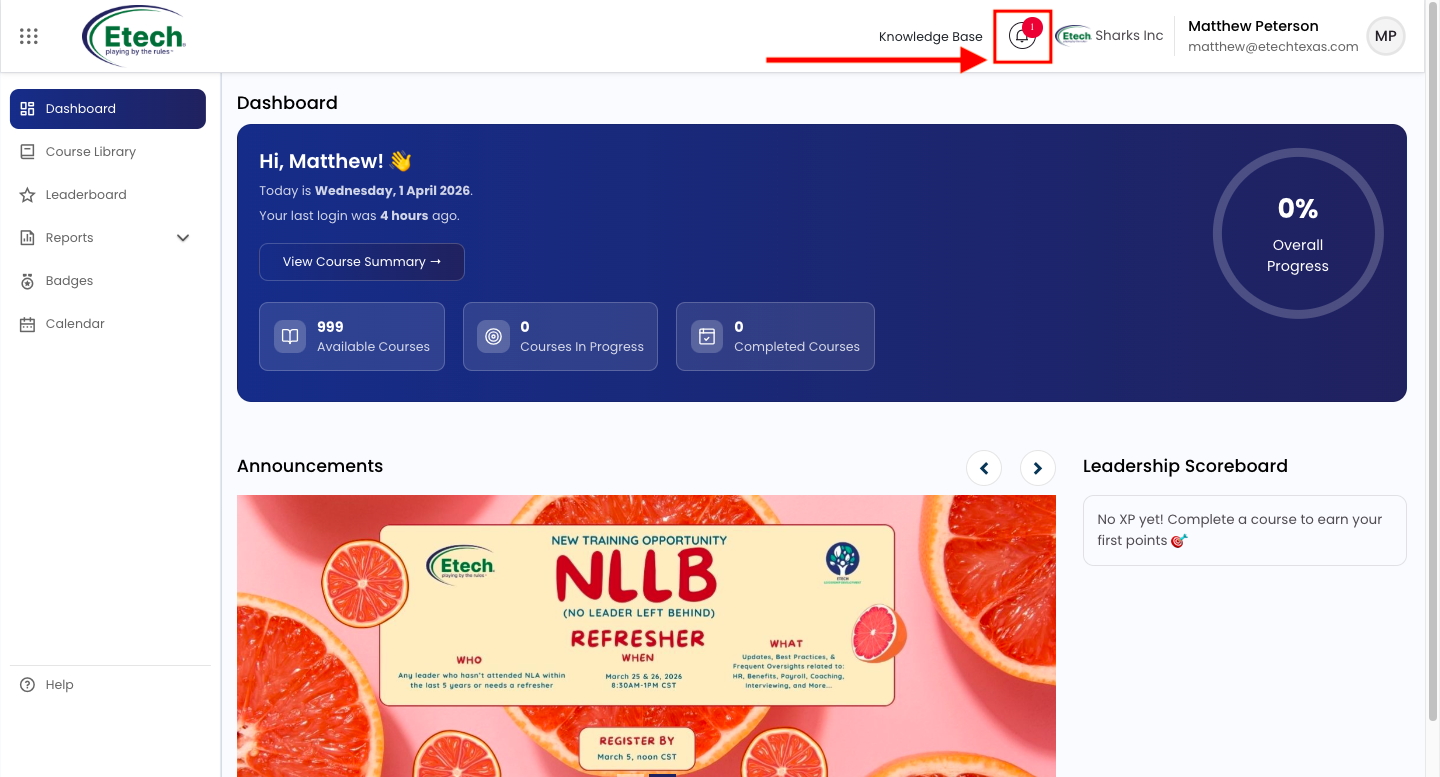
What Notifications Cover
- New course Enrollments and assignments
- Certificate availability upon course completion
- Reminders for pending or upcoming activities
- Questionnaire reminders and submission confirmations
- General announcements from EtechRU
- Welcome messages for newly enrolled courses
- Auto Enrollment notifications and weekly completion reminders
How to Manage Notifications
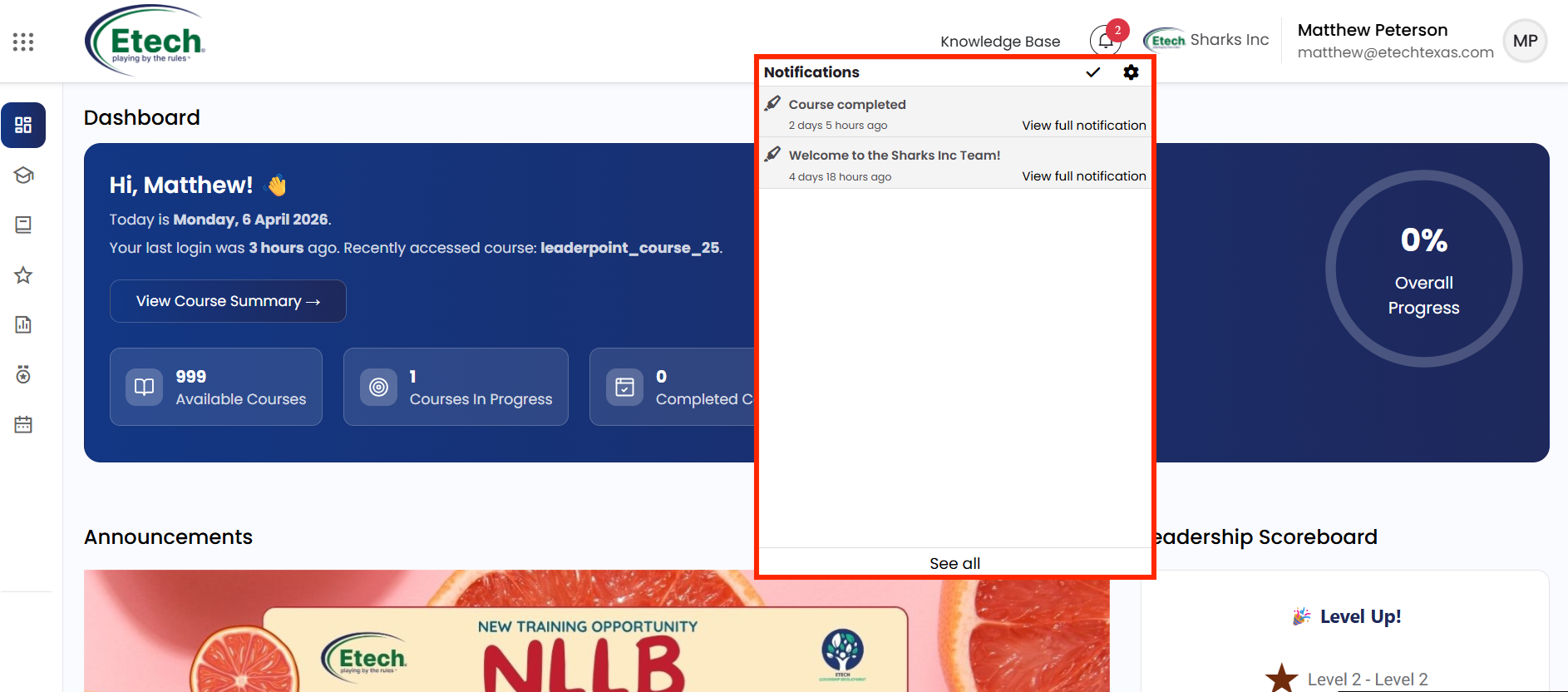
- Click the Bell icon in the top navigation bar to view your latest notifications.
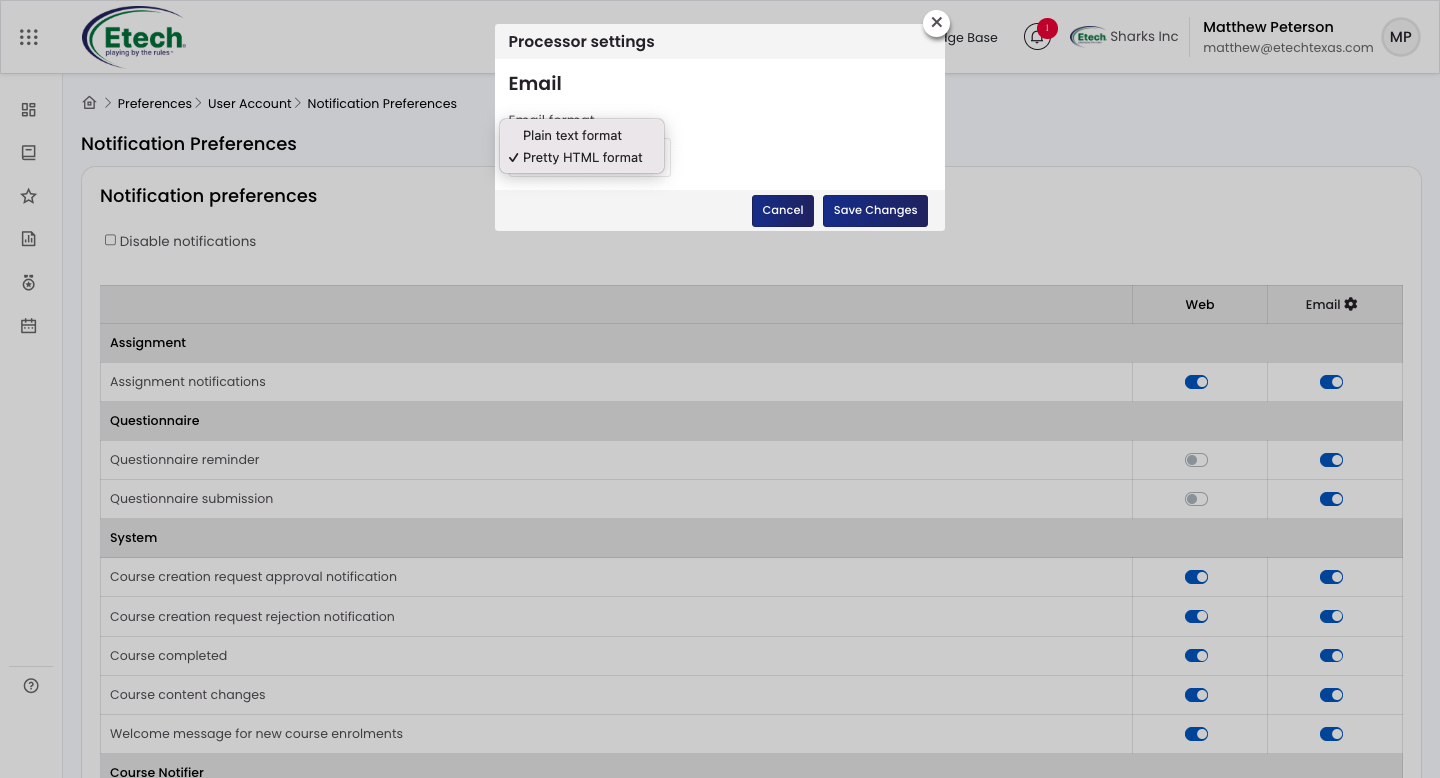
- To adjust your notification preferences, Click on the gear icon along the notification slide.
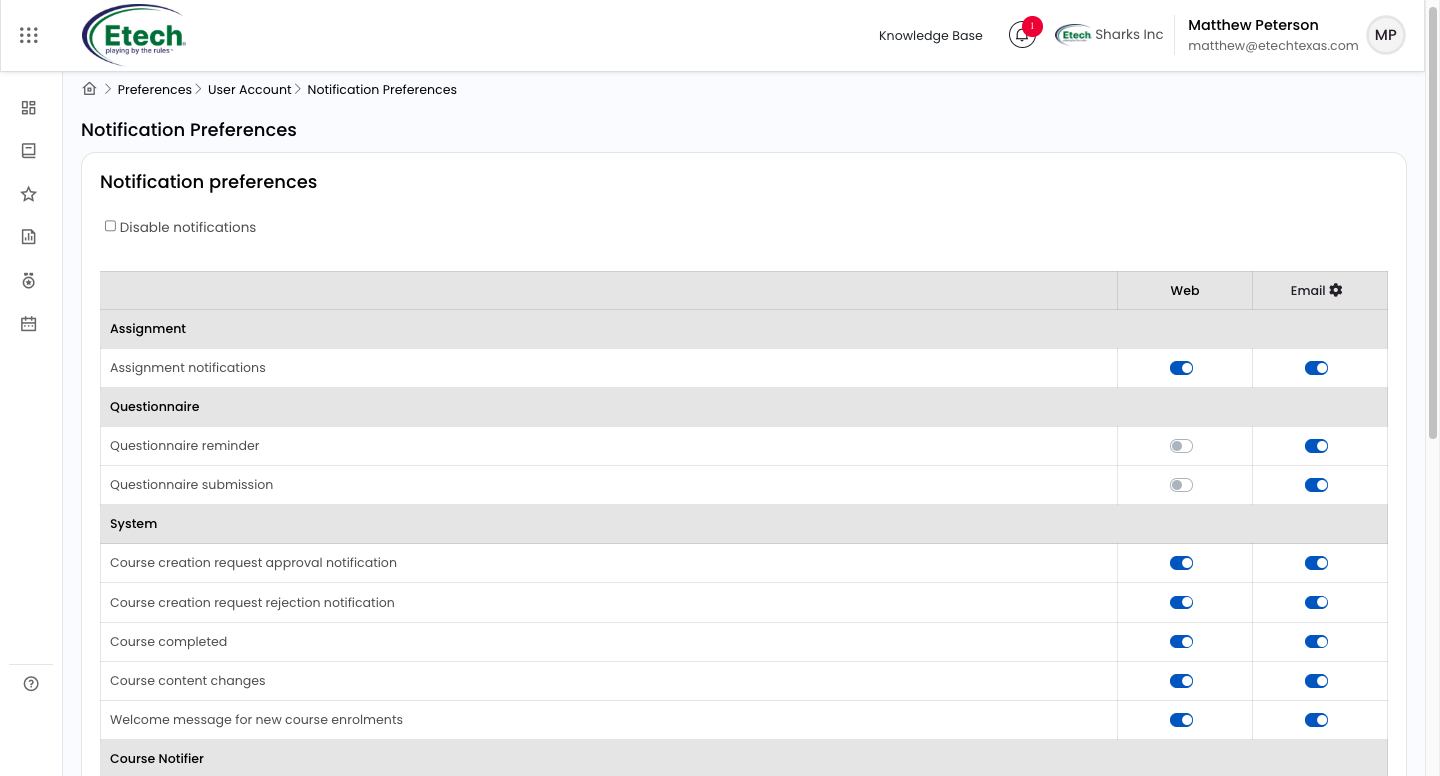
- Notifications are organised into four categories: Assignment, Questionnaire, System, and Course Notifier.
- Each notification type has two delivery channels – Web (in-platform) and Email – which can be toggled on or off independently.
- To turn off all notifications at once, check the Disable Notifications checkbox at the top of the page.
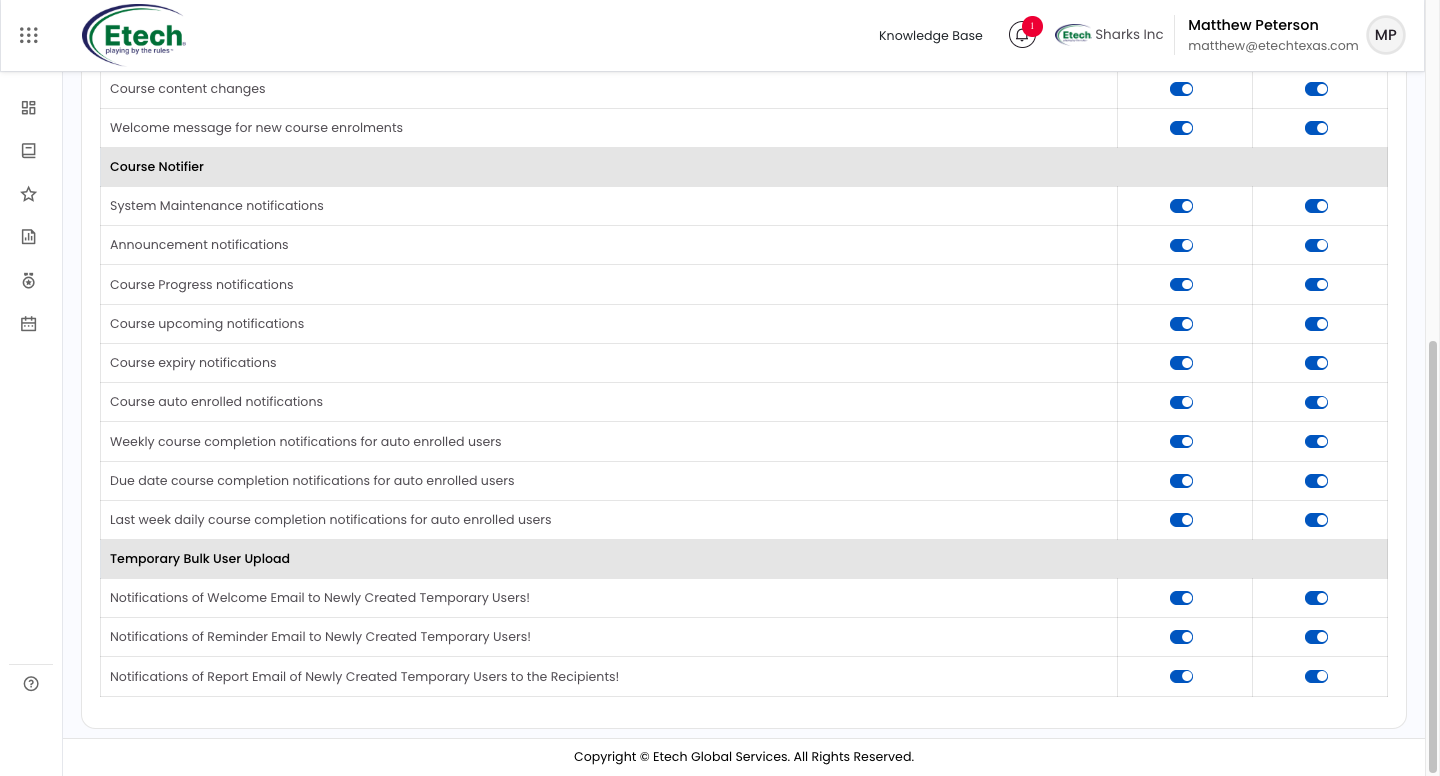
Notification Categories at a Glance
Assignment
- Assignment notifications
Questionnaire
- Questionnaire reminder
- Questionnaire submission
System
- Course creation request approval
- Course creation request rejection
- Course completed
- Course content changes
- Welcome message for new course enrollments
Course Notifier
- System maintenance notifications
- Announcement notifications
- Course progress notifications
- Course upcoming notifications
- Course expiry notifications
- Course auto enrolled notifications
- Weekly course completion notifications for auto enrolled users
- Due date course completion notifications for auto enrolled users
- Last week daily course completion notifications for auto enrolled users
Temporary Bulk User Upload
- Welcome email notifications for newly created temporary users
- Reminder email notifications for newly created temporary users
- Report email notifications for newly created temporary users
Email Format Settings
To configure your email format, click the Settings gear icon next to the Email column header and choose between Plain Text Format or Pretty HTML Format, then click Save Changes.
Tip: It is recommended to keep Email notifications enabled for critical items such as course completions, certificate availability, and upcoming deadlines so you never miss an important update.

Video