 Global Services
 The Reports section helps you monitor your learning journey with precision. It provides a comprehensive overview of your progress, achievements, and performance through five report types, each tailored to a different aspect of your learning experience.
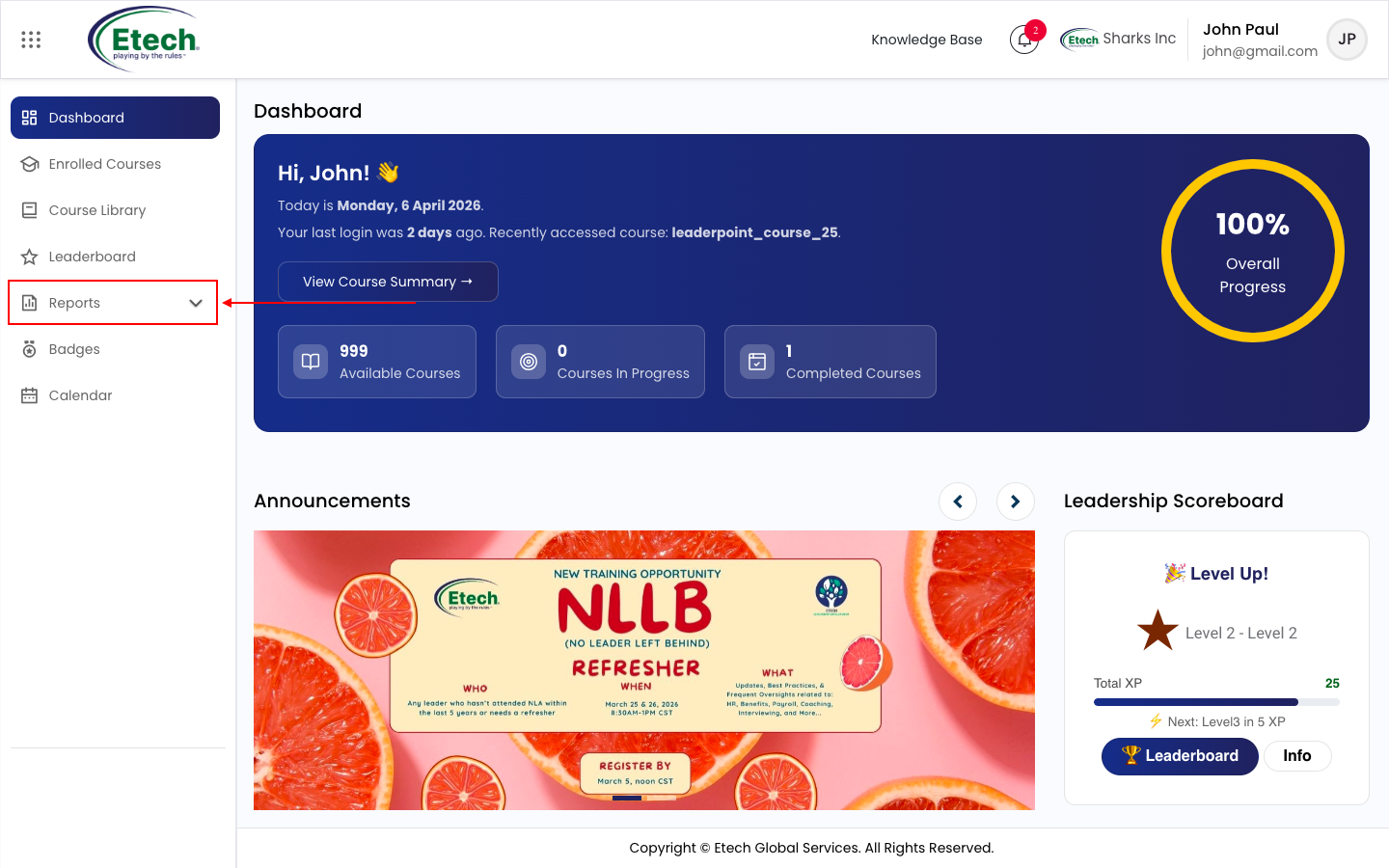
How to Access Reports:
- Click Reports from the left navigation menu.
- Select the desired report type from the sub-menu.
- Apply relevant filters such as Category, Course, Status, and Date Range.
- Click Search to generate your report.
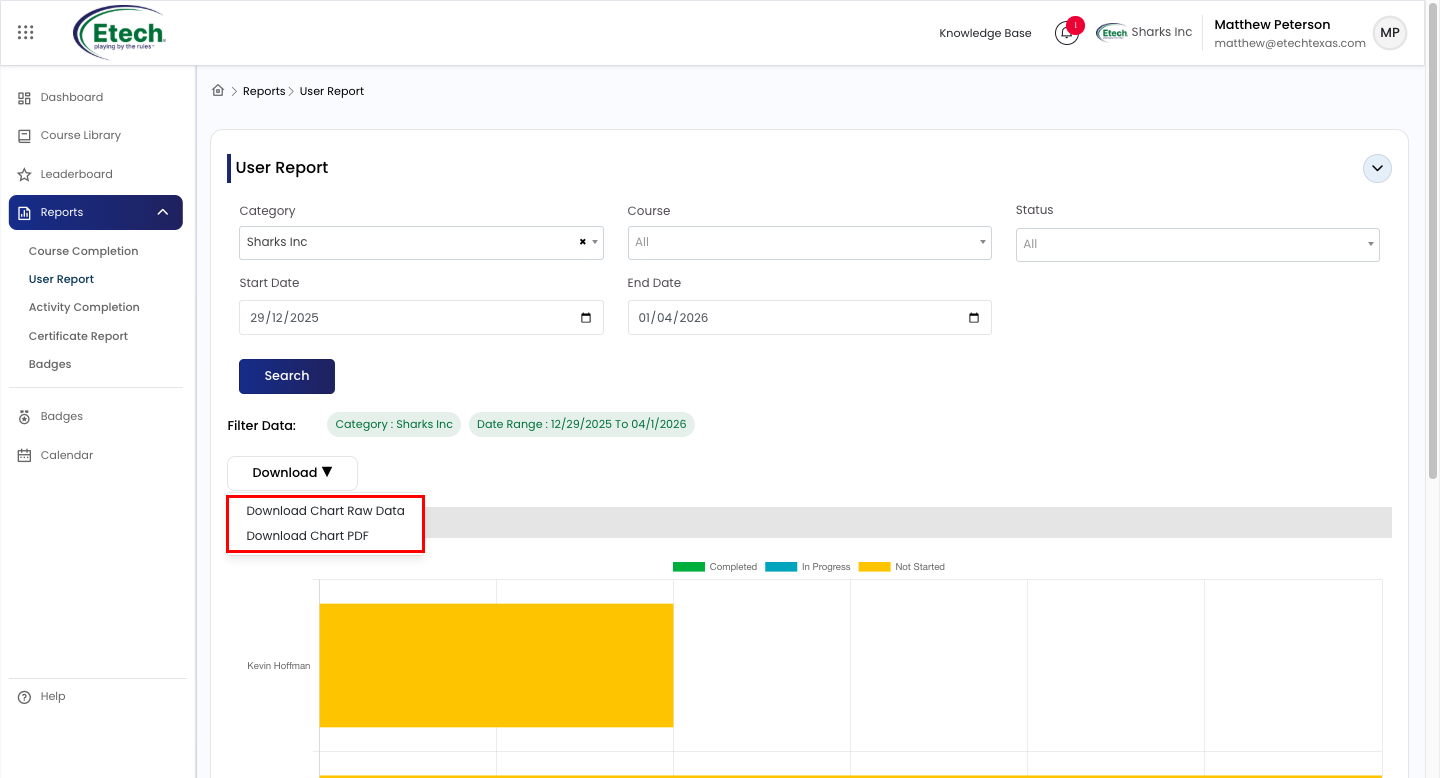
- Use the Download button to export your data in your preferred format.
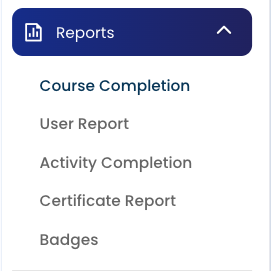
1. Course Completion Report
Tracks the completion status of your courses. This report shows which courses have been completed and which are still in progress, with visual charts broken down by location, course, category, and department.
Available Filters: Category, Course, Status, Date Range.
Use the Download button to export your report data in your preferred format.
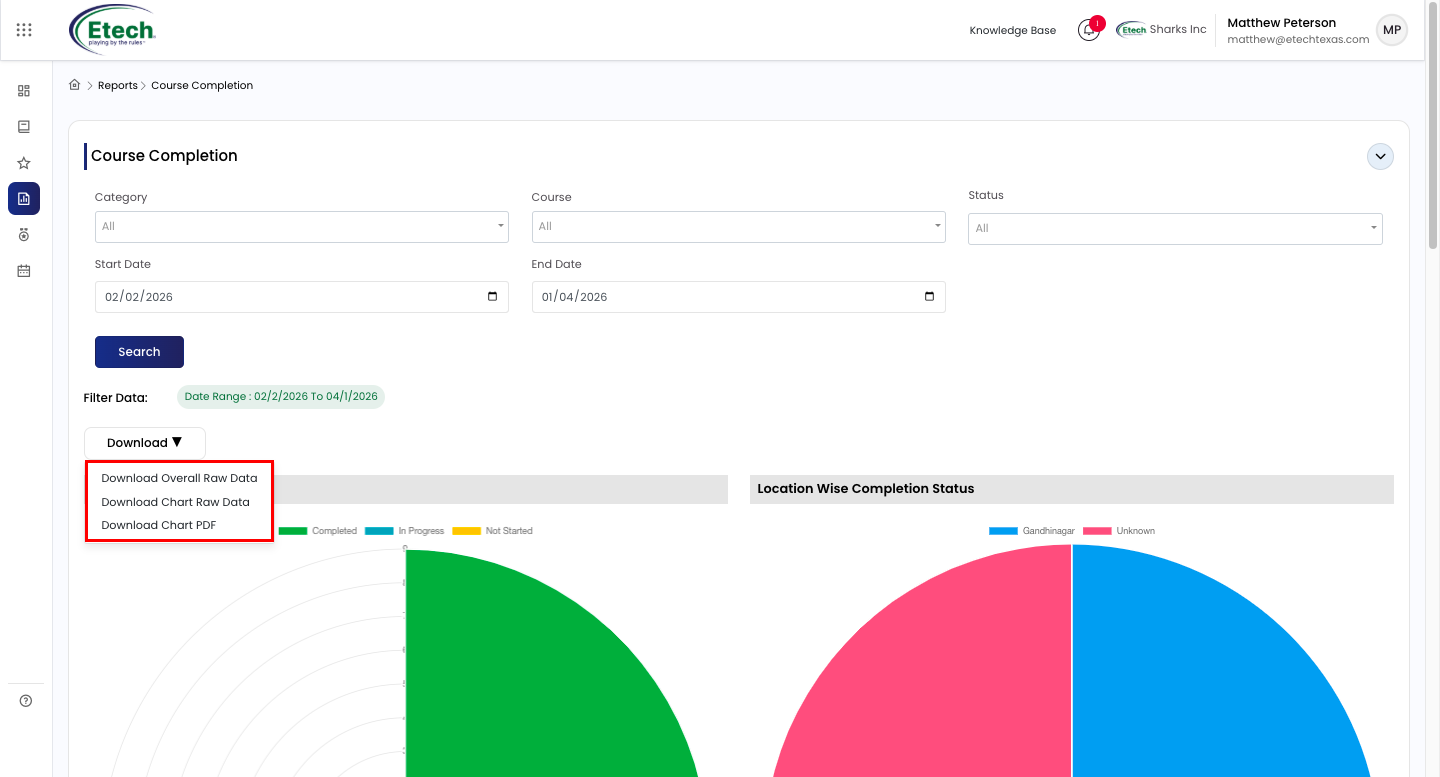
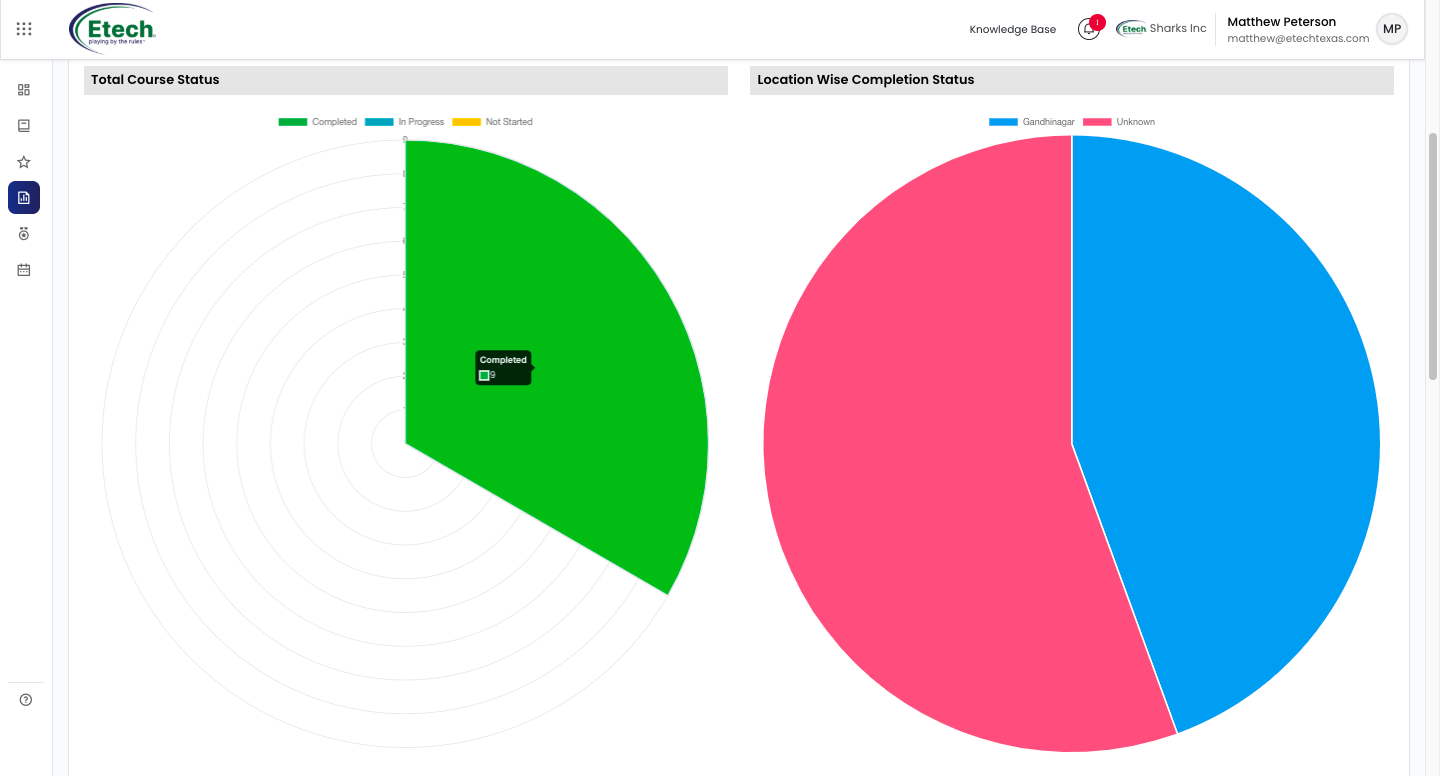
1) Total Course Status : A radial chart displaying the overall distribution of course completion across your department, broken down into Completed (green), In Progress (blue), and Not Started (yellow).
2) Location Wise Completion Status : A pie chart showing course completion rates segmented by learner location, helping you identify which call center sites are leading or lagging in training progress.
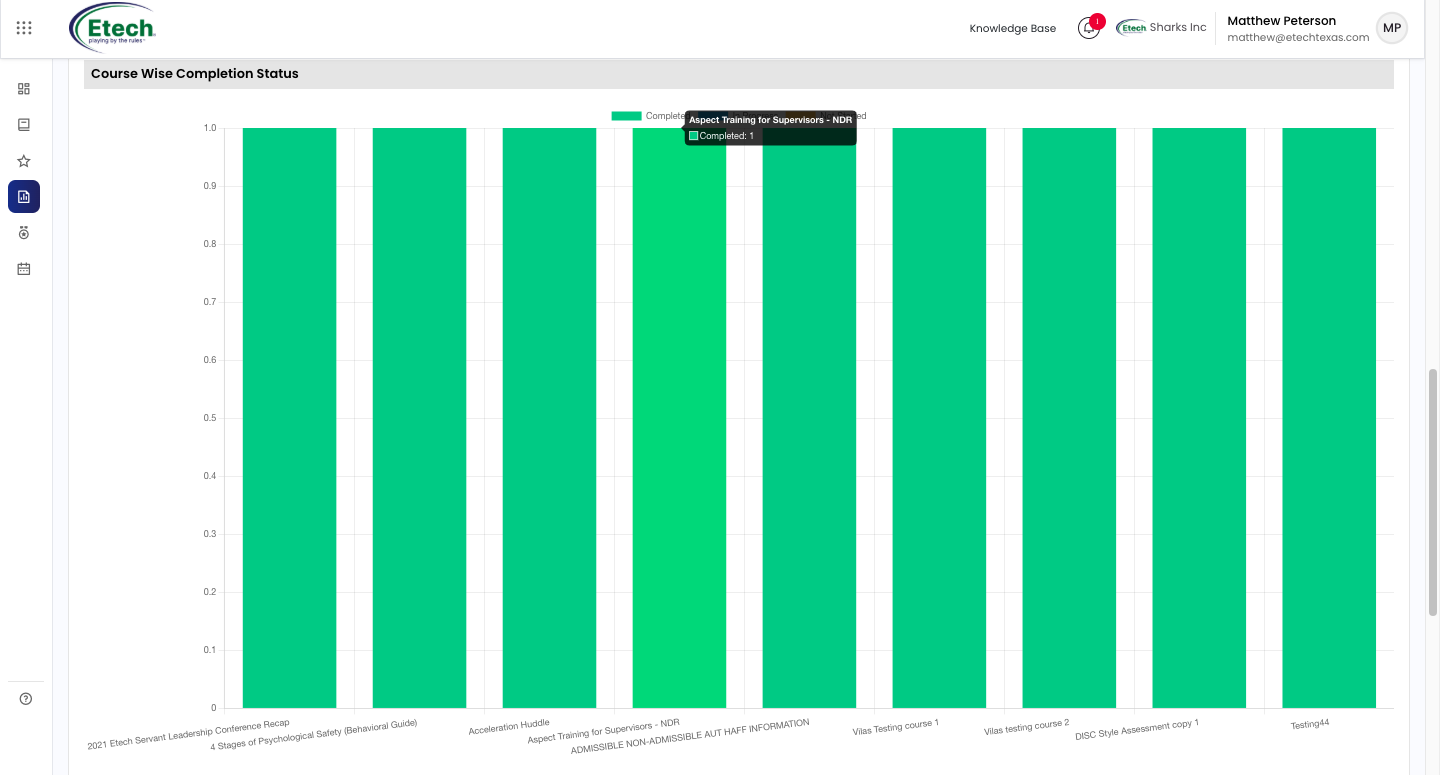
3) Course Wise Completion Status : A bar chart displaying completion rates for each individual course, allowing you to quickly identify which courses have been fully completed and which still have outstanding learners.
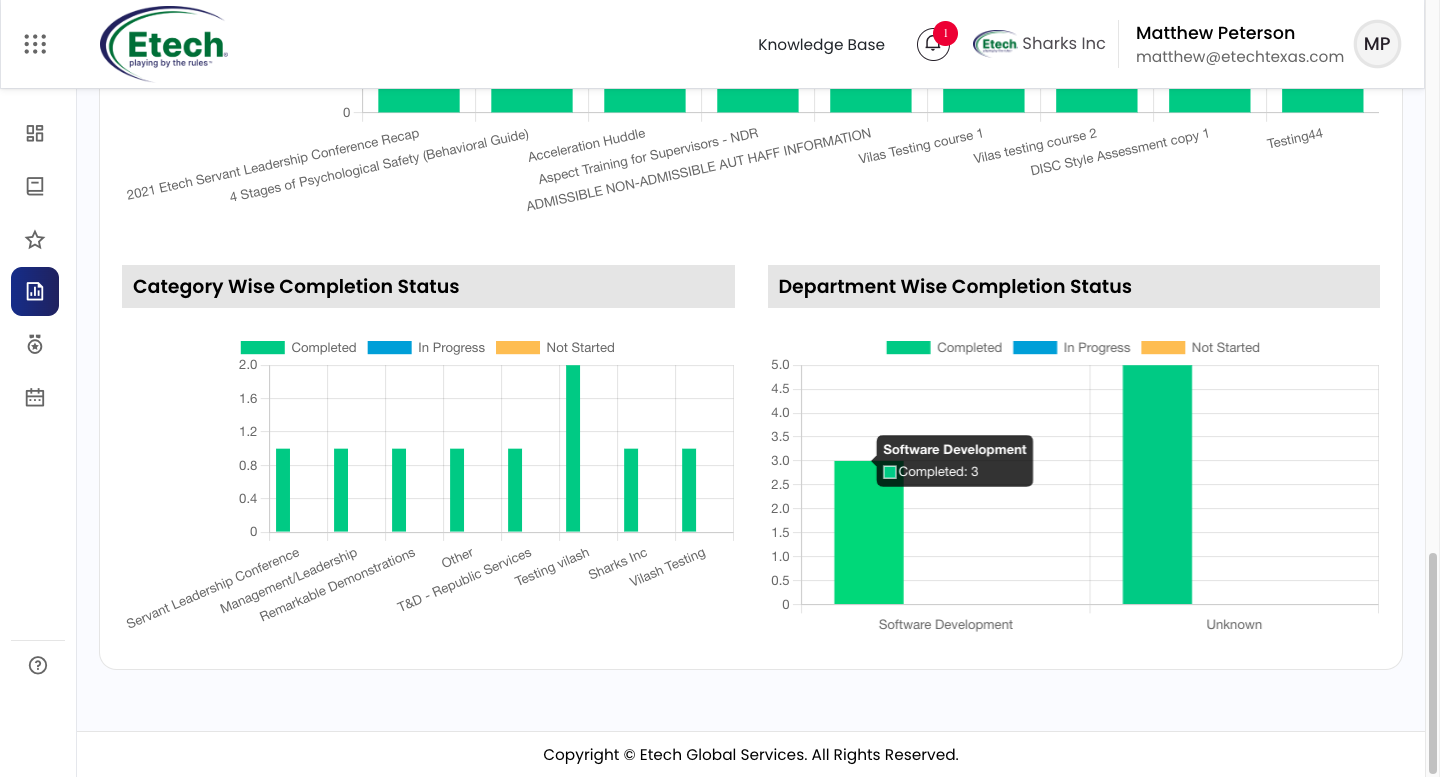
4) Category Wise Completion Status : A bar chart breaking down course completion by category, such as Management/Leadership, T&D, and Remarkable Demonstrations, giving you a clear view of training progress across different learning areas.
5) Department Wise Completion Status : A bar chart showing course completion figures segmented by department, enabling you to compare training progress across teams and identify departments that may need additional follow-up.
2. User Report
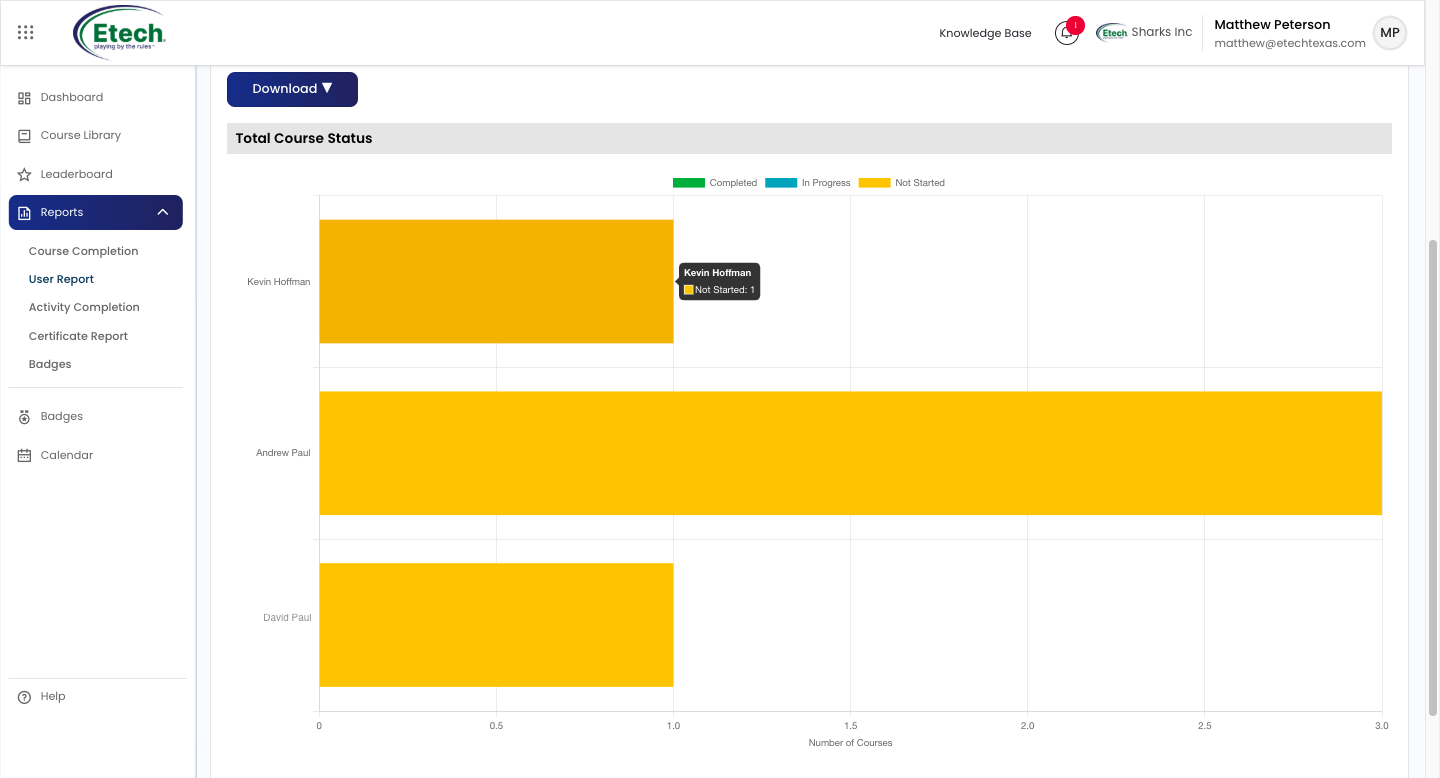
Provides a broad overview of user performance across all courses and activities. This report summarizes individual learning progress and participation, displayed as a bar chart showing completed, in-progress, and not-started courses per user.
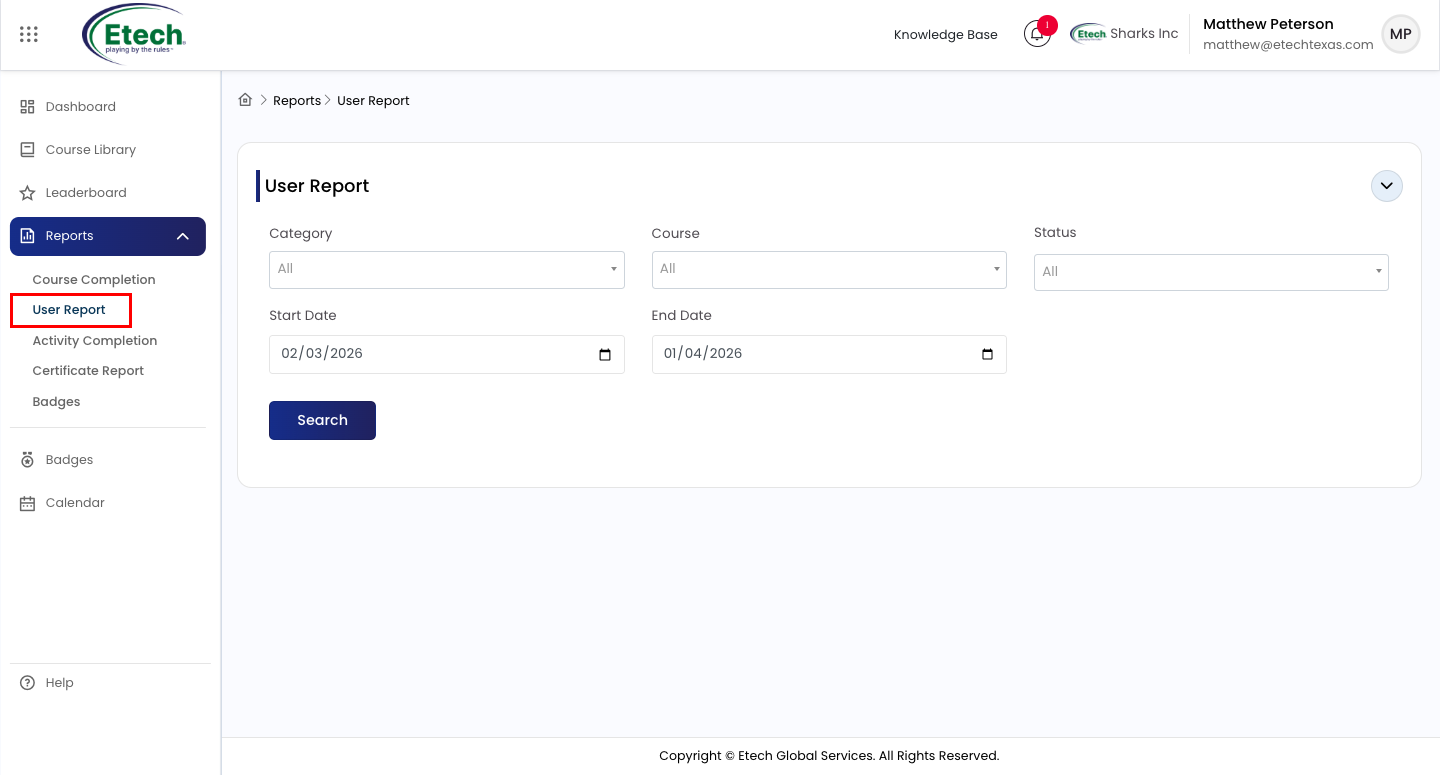
Available Filters: Category, Course, Status, Date Range; Download Options: Chart Raw Data, Chart PDF
Total Course Status : A horizontal bar chart displaying the total course status for each individual user, broken down into Completed (green), In Progress (blue), and Not Started (yellow). Hover over any bar to view a quick summary of a specific user’s course count by status.
3. Activity Completion Report
Monitors progress at a granular level, showing the completion status of individual course activities. This report helps you identify which tasks have been completed and which are still pending.
Available Filters: Category, Course, Status, Date Range Download Options: Overall Raw Data, Chart PDF
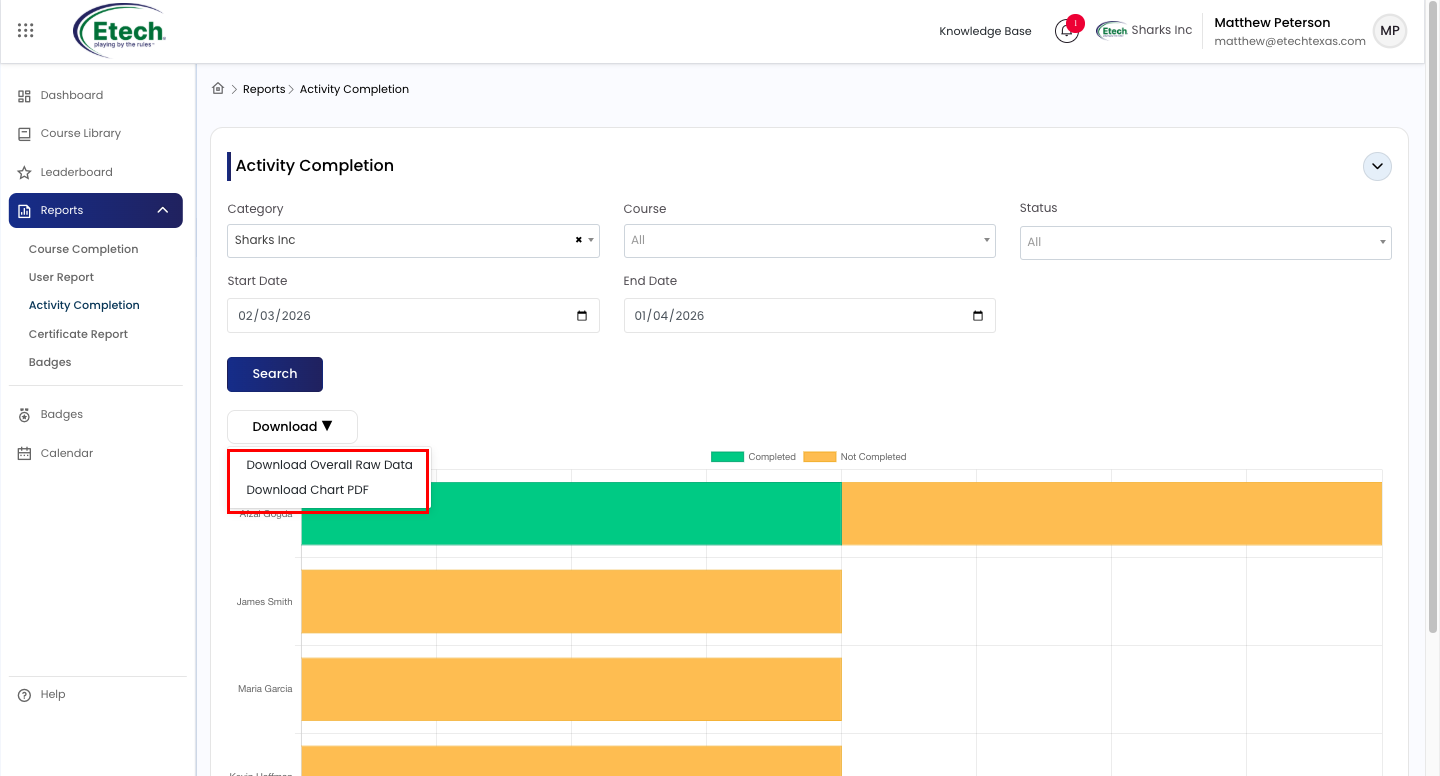
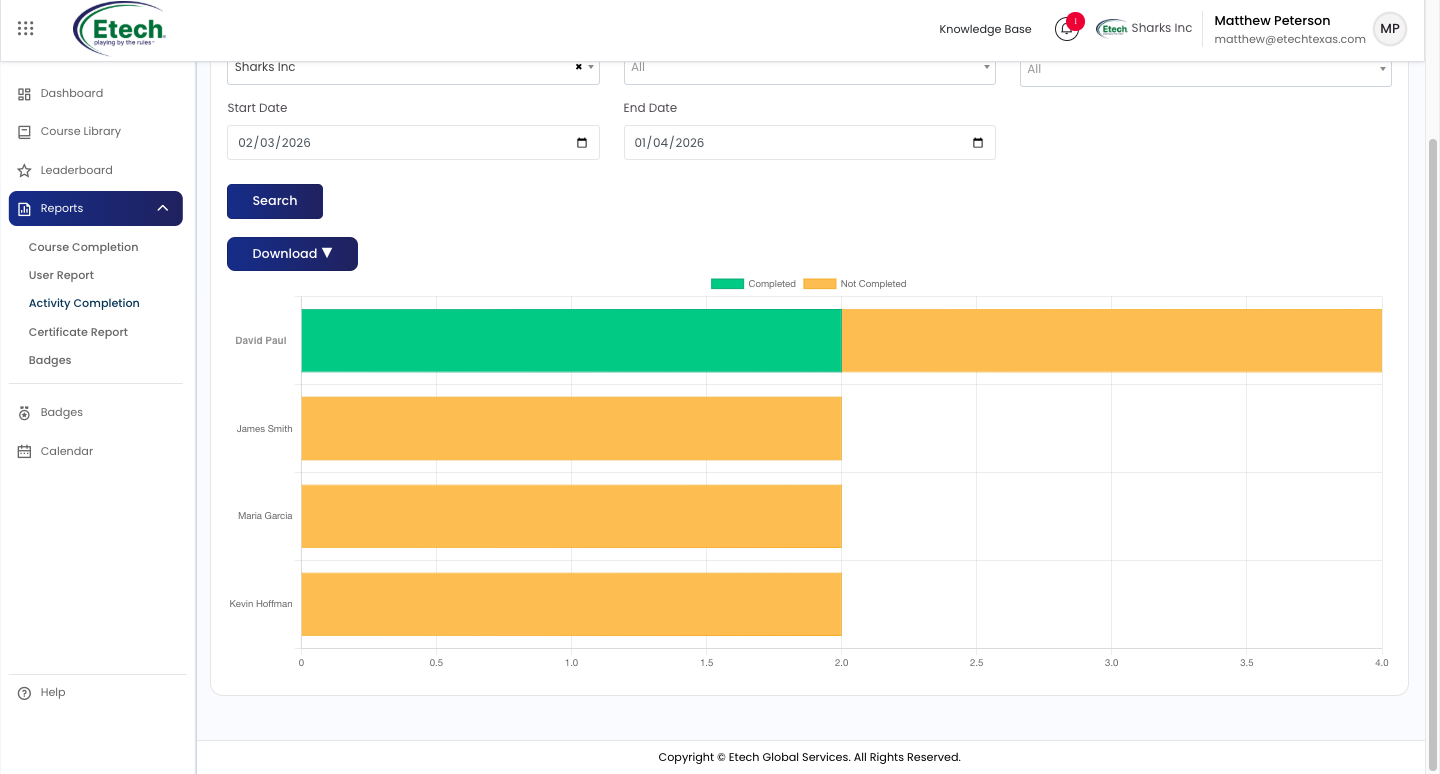
Activity Completion Report : A horizontal bar chart showing the completion status of course activities for each learner, segmented into Completed (green) and Not Completed (orange). This view helps you quickly identify which users have finished their assigned activities and who may still need follow-up.
4. Certificate Report
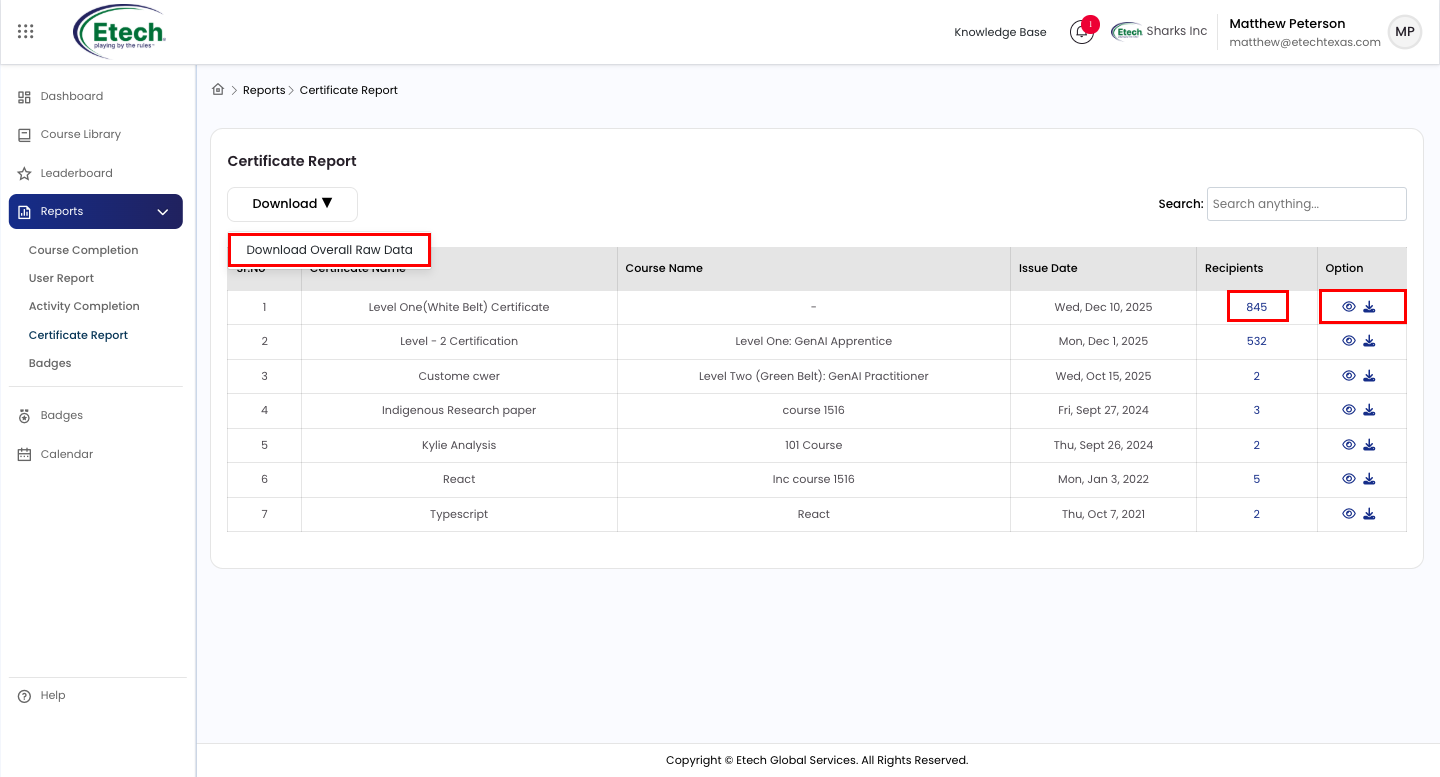
Displays a full table of earned certificates including the certificate name, associated course, issue date, and number of recipients. Use the built-in search bar to quickly locate a specific certificate.
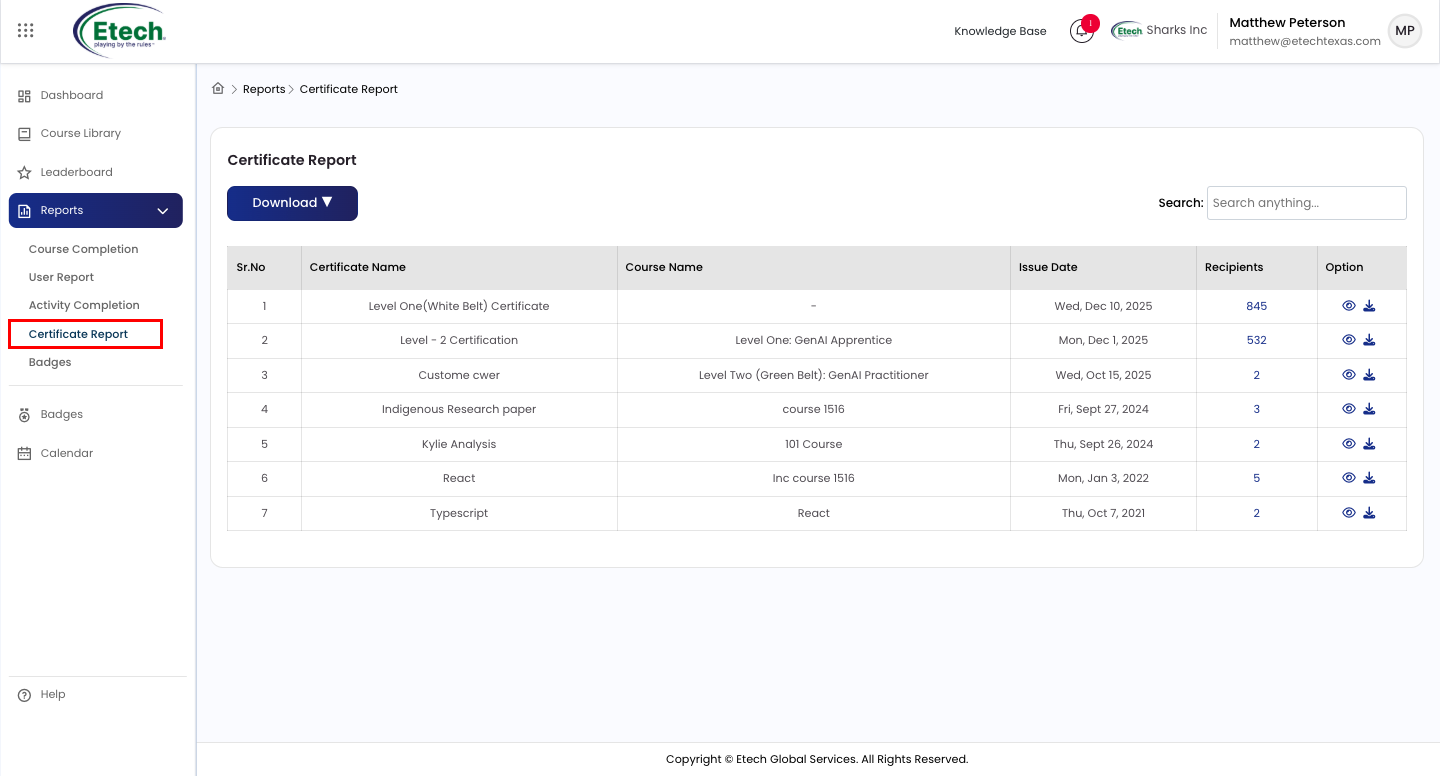
Available Actions: Search by certificate name, View recipients, Download raw data; Download Options: Overall Raw Data (Excel)
Click the View button on any course to open its details page.
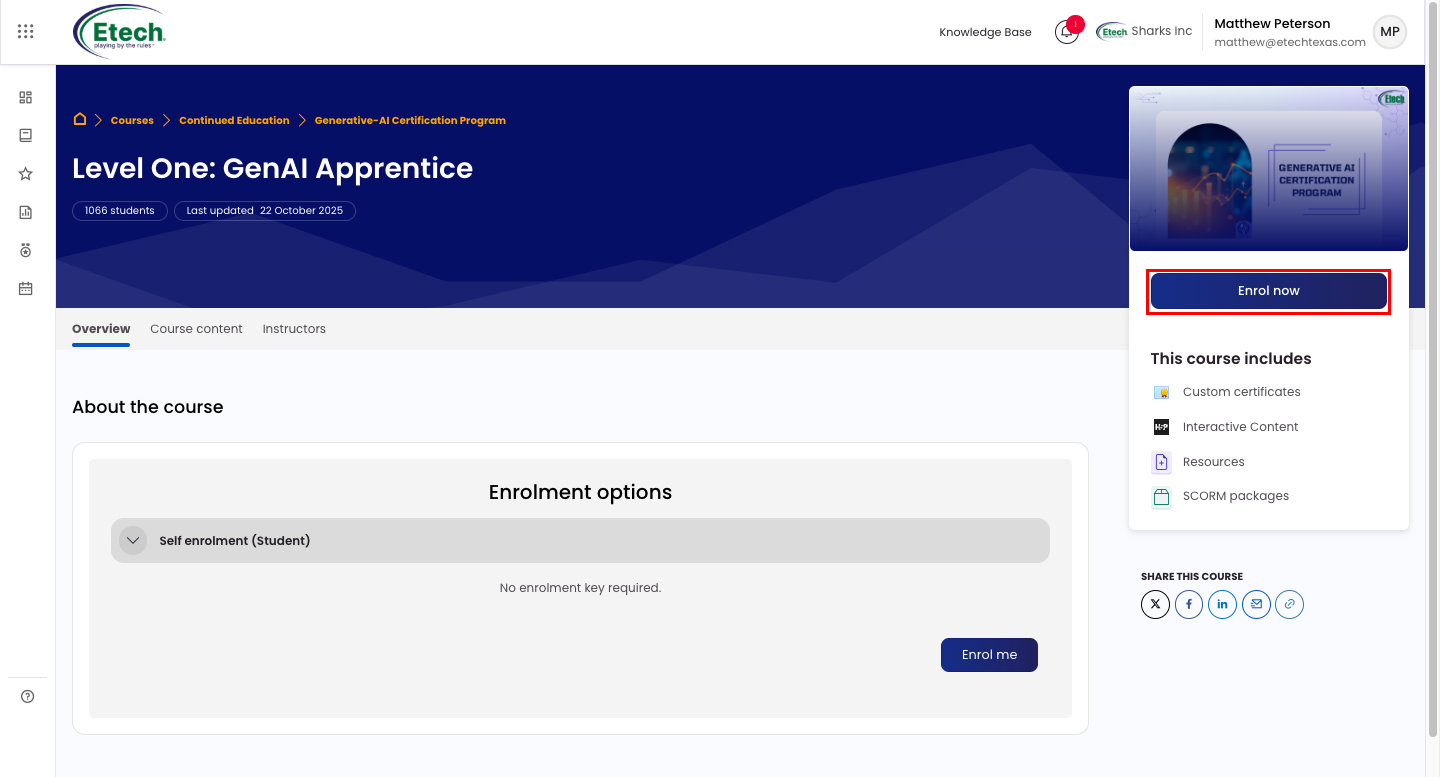
The Overview tab shows the course title, student count, last updated date, and included content types such as Custom Certificates, Interactive Content, Resources, and SCORM Packages. To get started, click Enroll Now from the right panel or Enroll Me at the bottom of the page.
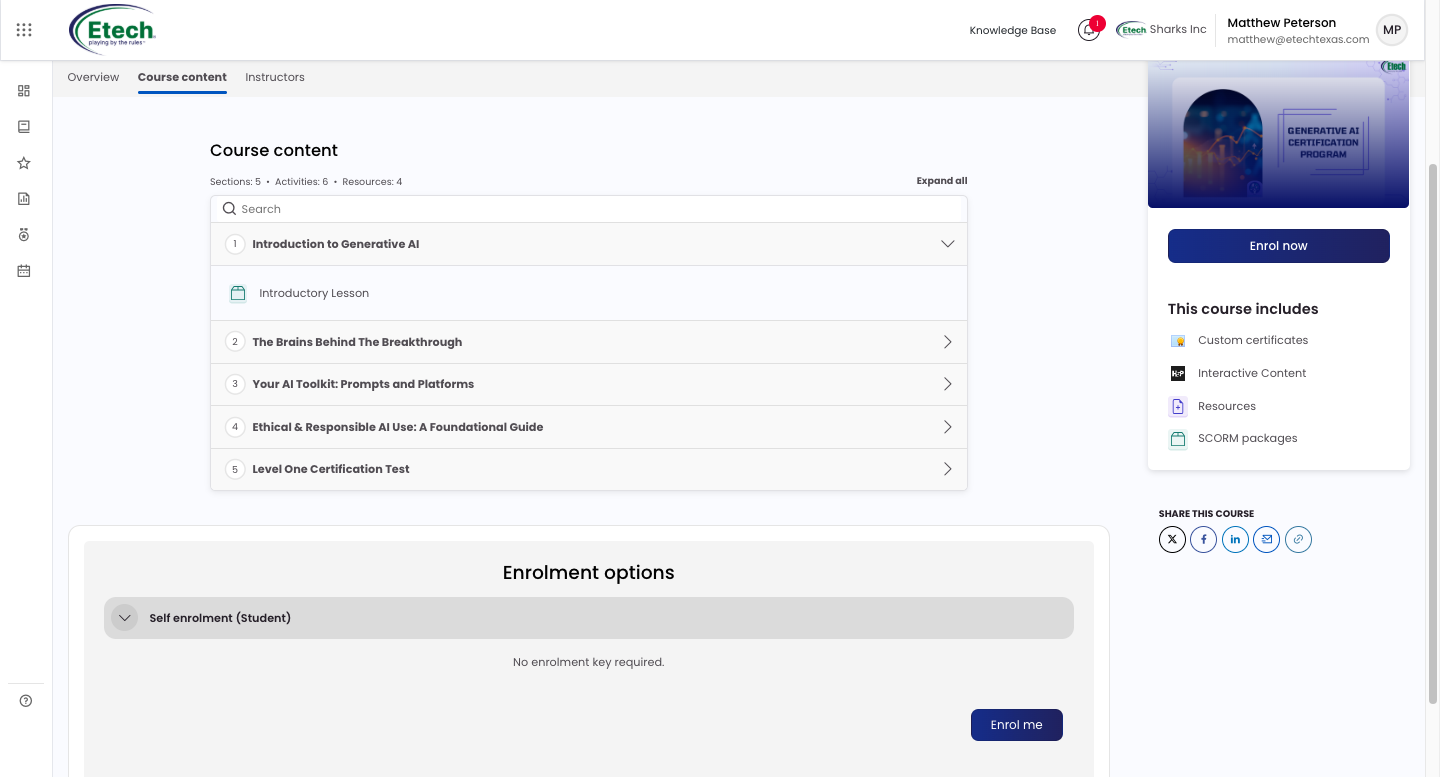
Click the Course Content tab to explore the full structure of the course, including the total number of sections, activities, and resources available. Each section can be expanded to view individual lessons. Use the Search bar to find a specific topic or click Expand All to view the complete course outline at once.
5. Badge Report
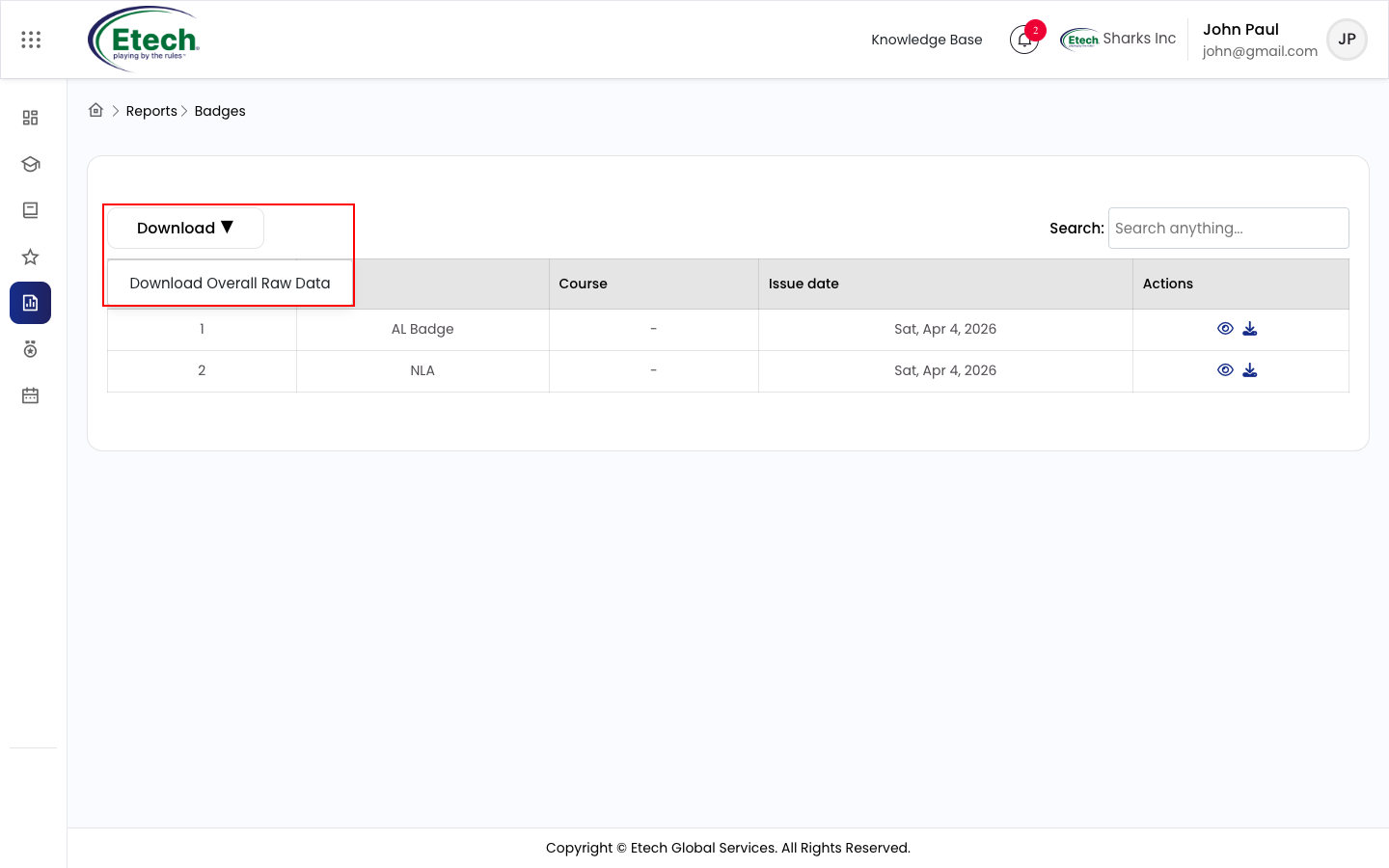
Highlights all earned badges, providing a clear record of your learning engagement and accomplishments. Similar to the Certificate Report, it includes a search bar and download option for easy record-keeping.
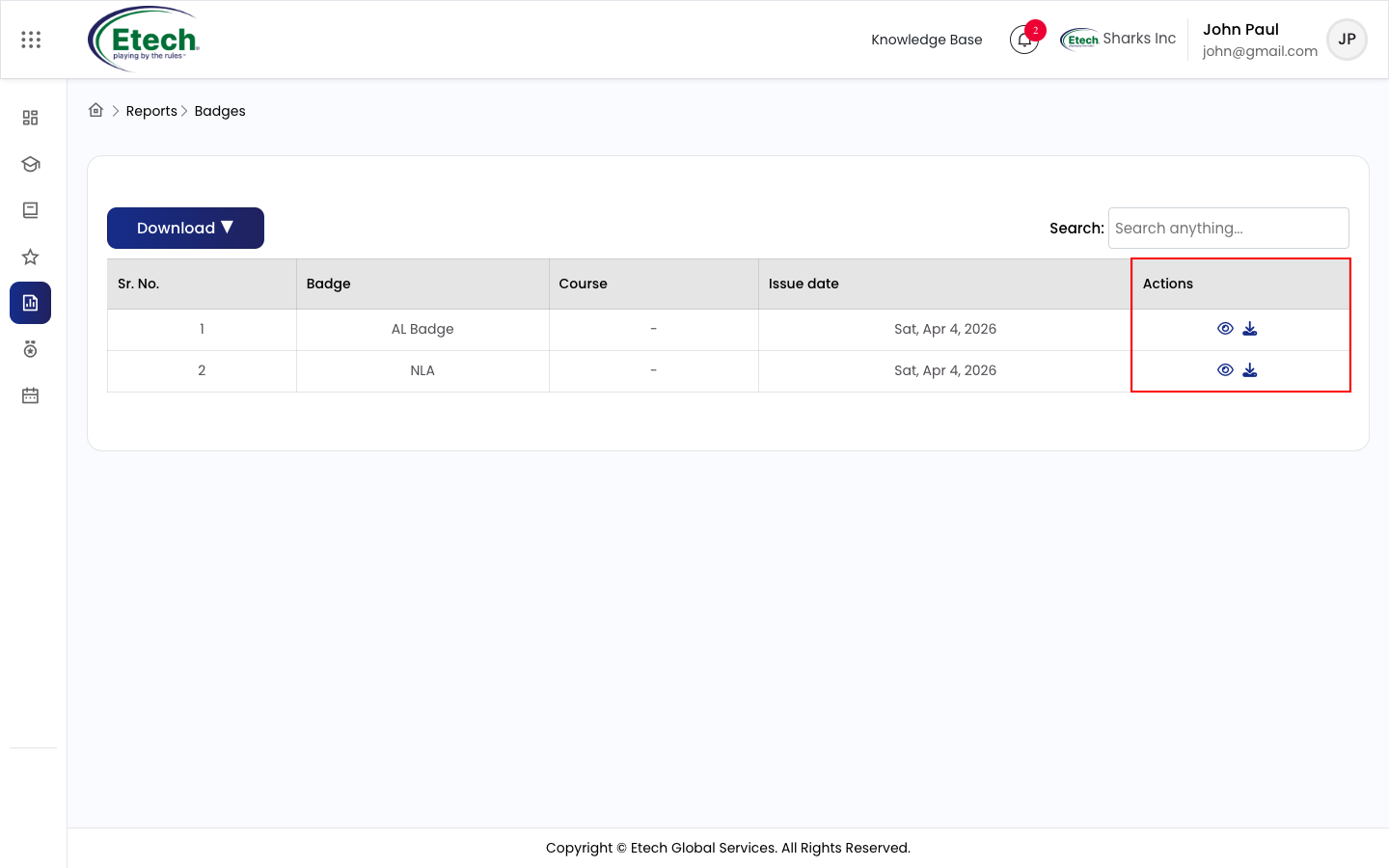
Available Actions: Search by badge name; Download Options: Overall raw data

Video