 Global Services
 As a Department Training Manager, use the Courses tab to manage user enrollments and design Learning Paths tailored to your department’s training needs.
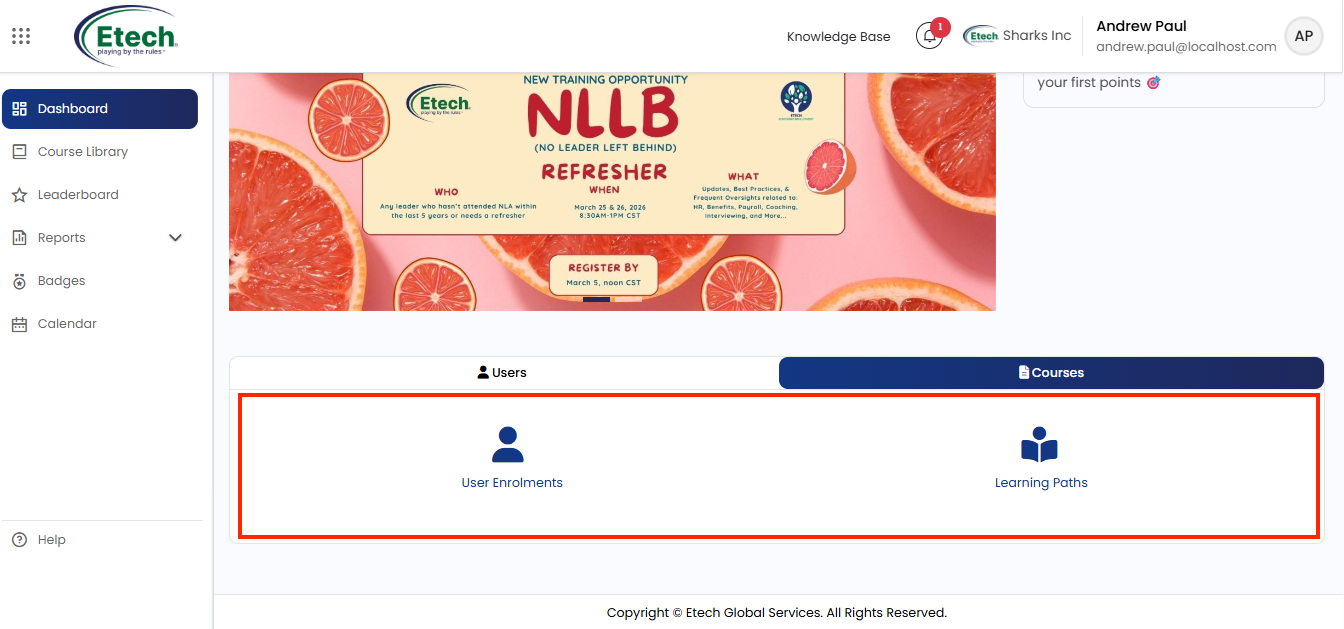
User Enrollments
Use this to enroll or unenroll users from courses across your company.
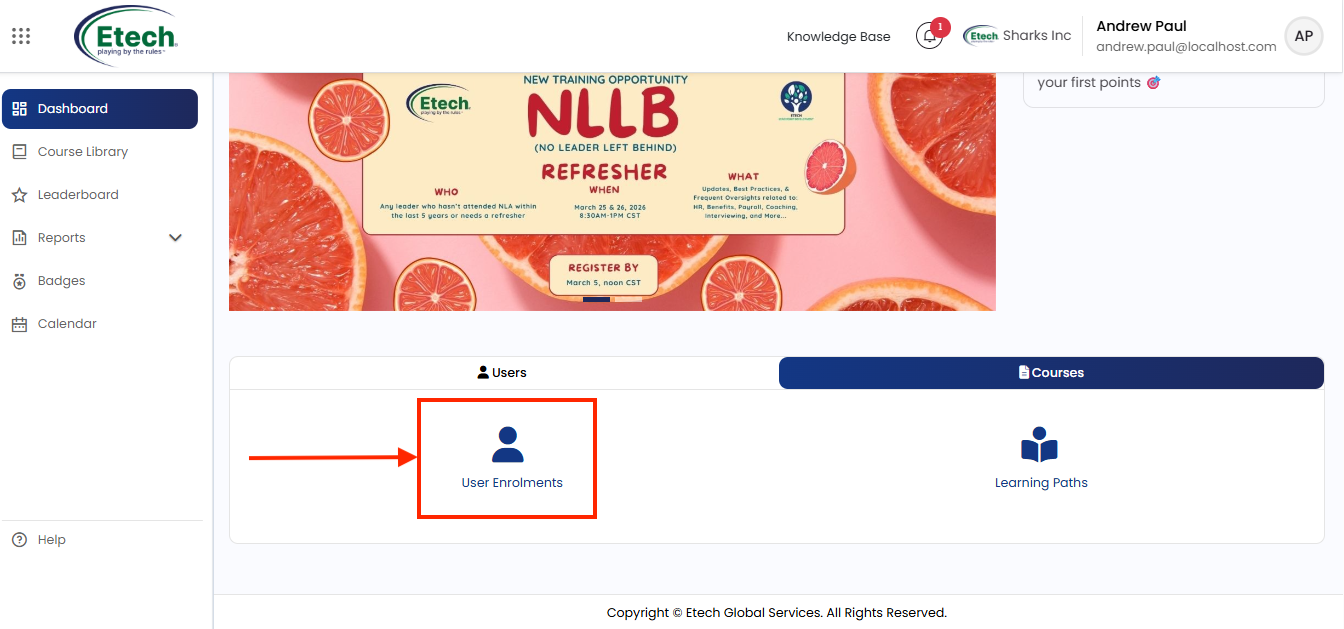
Selecting a course
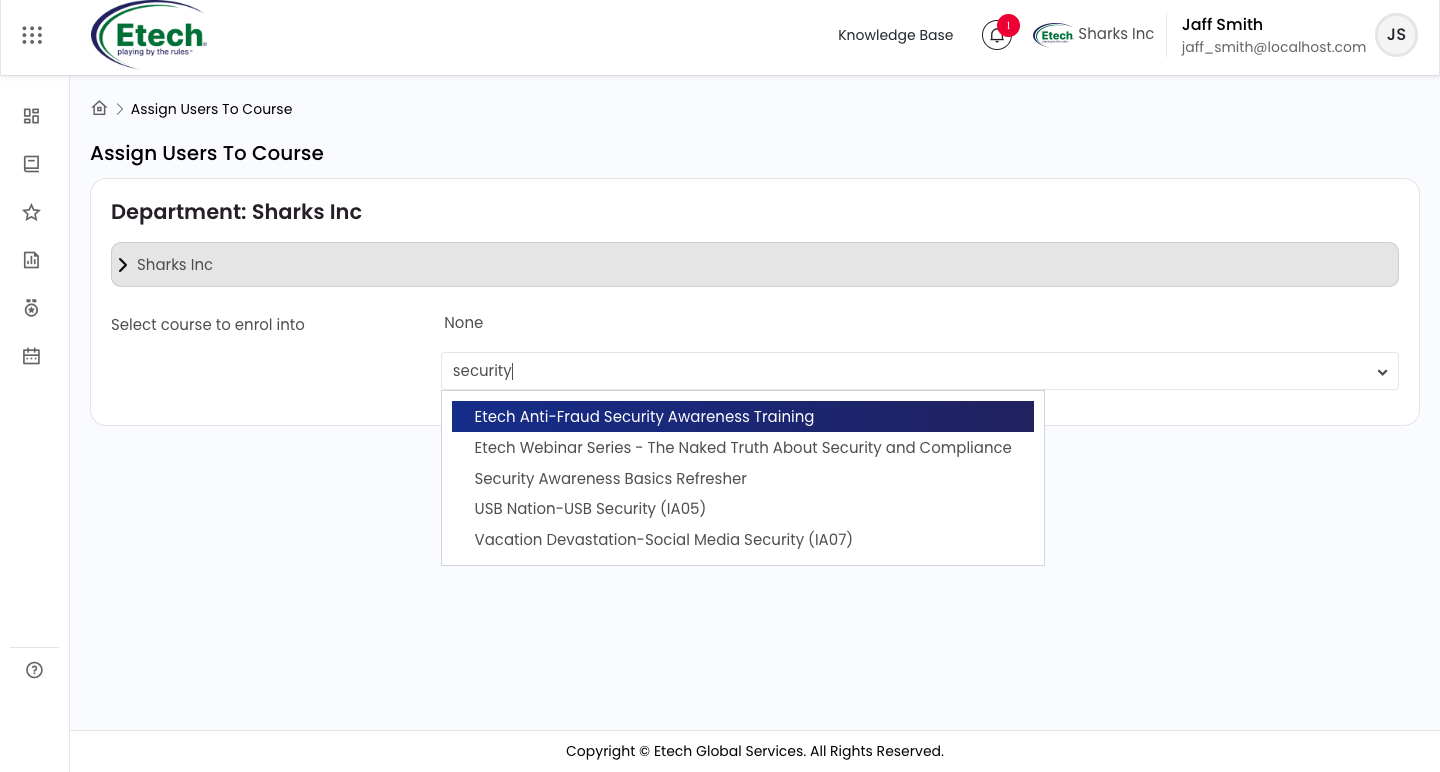
- Under the department tree (e.g., Sharks Inc), use the Select course to enroll into field
- Type a keyword in the search box to filter available courses (e.g., typing “security” will return all security-related courses)
- Click on the course name to select it, it will appear as a tag above the search box
Once a course is selected, the enrollment panel loads showing:
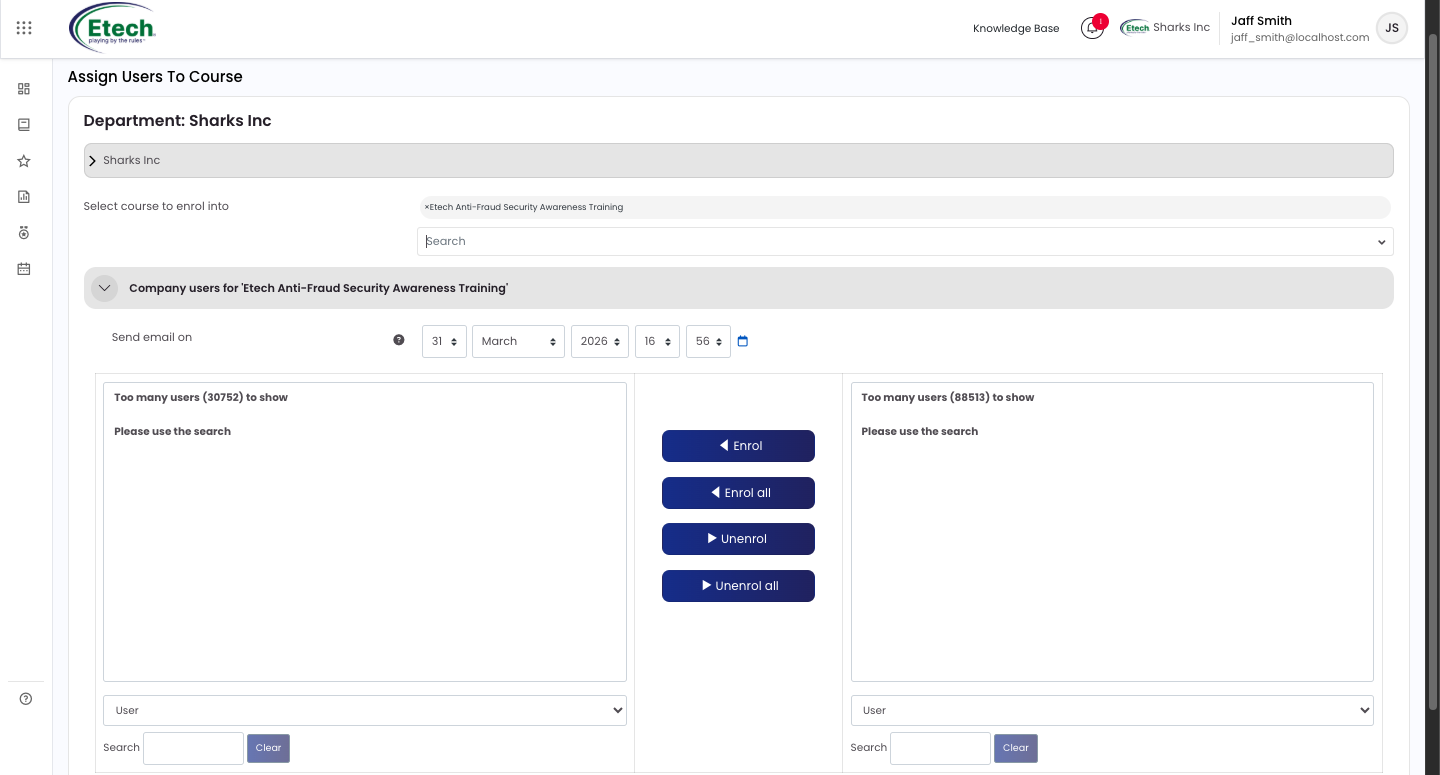
- Left panel : users already enrolled in the course
- Right panel : users available to enroll
- Both panels display a search bar for finding specific users when the list is too large to show
Send email on : set the date and time the enrollment notification email will be sent to users
Action buttons:
- Enroll : enrolls the selected user(s) from the right panel into the course
- Enroll all : enroll every user in the right panel into the course at once
- Unenroll : removes the selected user(s) in the left panel from the course
- Unenroll all : removes all currently enrolled users from the course at once
Use Enroll all and Unenroll all with caution, these actions affect every visible user in the panel.
Learning Paths
Use this to create structured sequences of courses that guide learners through a defined journey.
Creating a new Learning Path
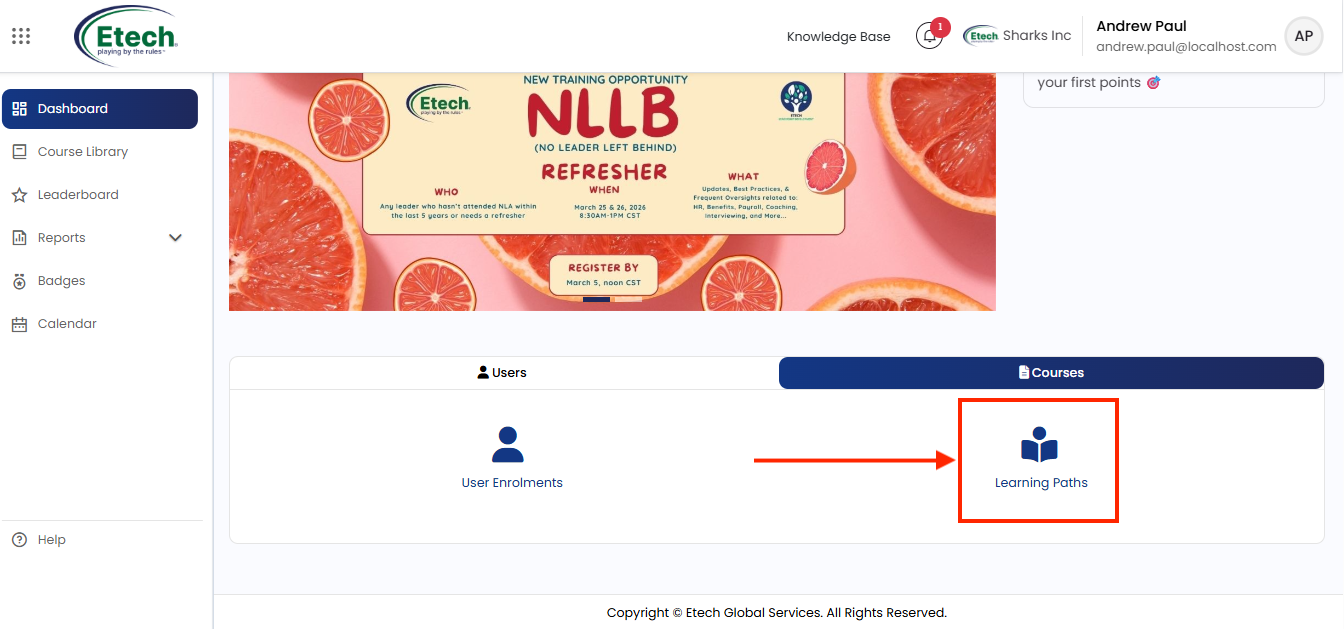
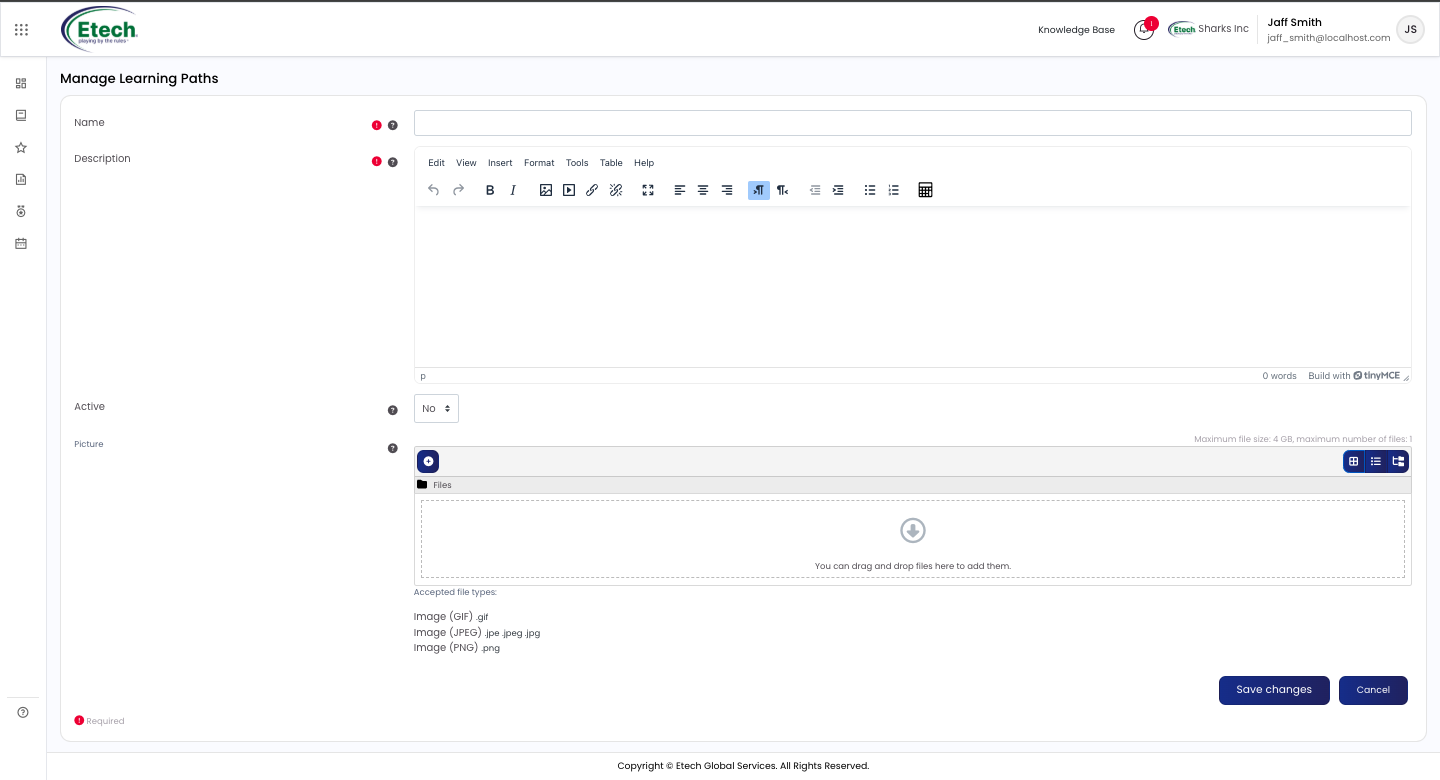
Click Learning Paths from the Courses tab, then click Add new path. The creation form includes:
- Name : Enter a clear, descriptive name for the learning path
- Description : Use the rich text editor to add a summary or instructions for learners. The editor supports formatting, images, links, and tables
- Active : set to Yes when the path is ready to be visible to learners. Leave as No while still building it
- Picture : optionally upload a cover image for the learning path. Accepted formats: GIF, JPEG (.jpe, .jpeg, .jpg), PNG. Maximum file size: 4 GB, maximum 1 file
Click Save changes to create the path, or Cancel to discard.
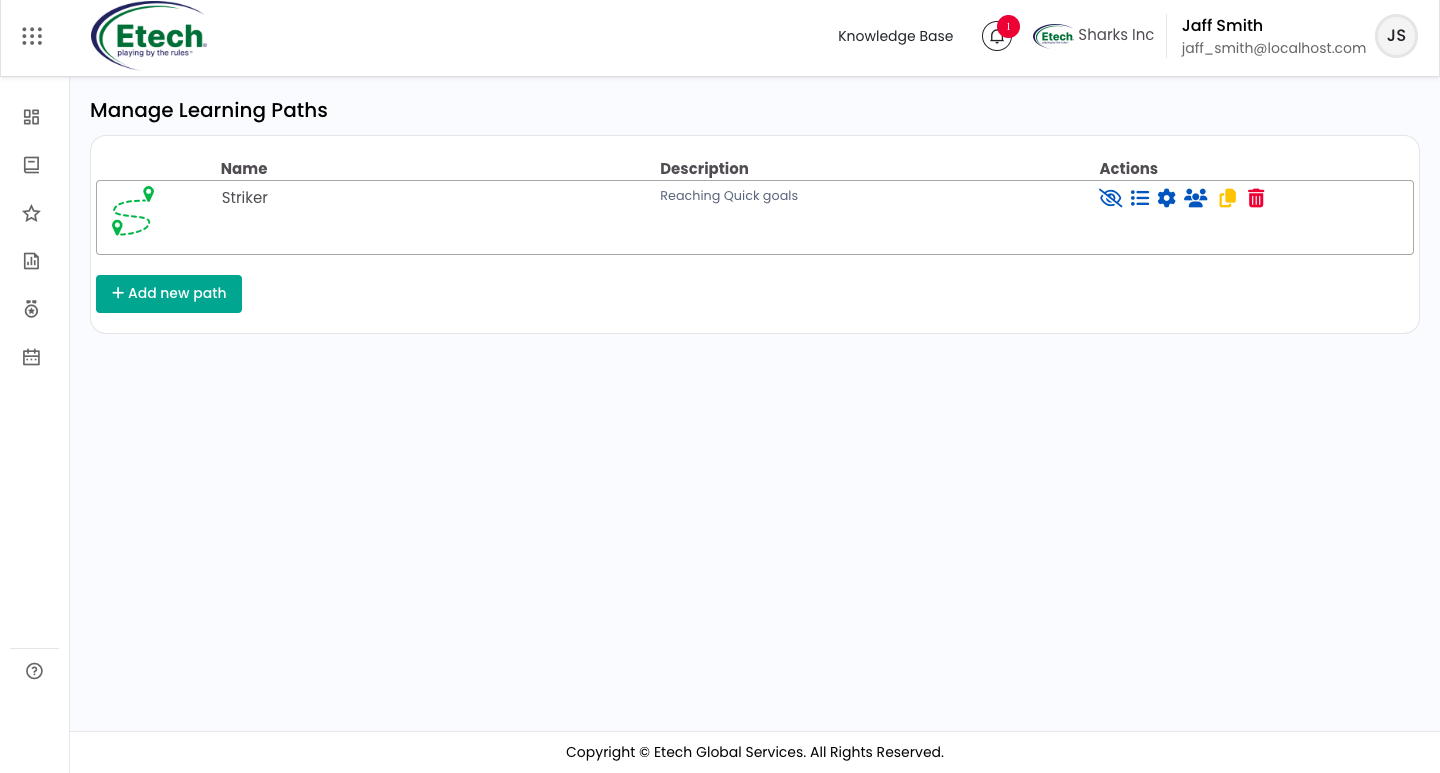
After saving, the following actions become available on the learning path:
- Make available / unavailable : controls whether learners can see and access the path
- Edit course list : add or remove courses from the path and set whether course sets are sequential (must be completed in order) or non-sequential (can be done in any order)
- Edit path : update the name, description, active status, or picture
- Assign students : assign specific learners or groups to the learning path
- Duplicate : creates a copy of the path which can then be modified independently
- Delete : permanently removes the learning path
Set Active to No while building or editing a path so learners do not see an incomplete version.

Video